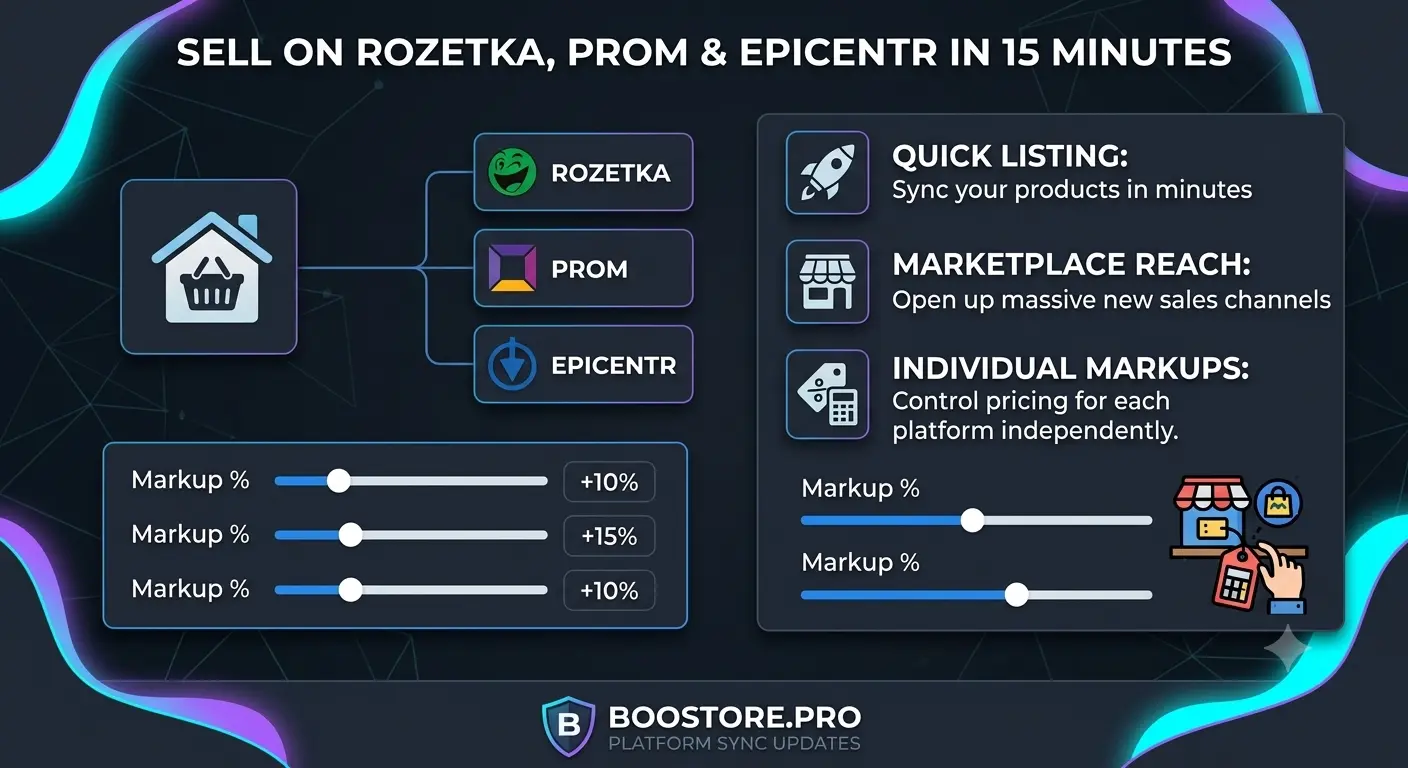
Get on Rozetka, Prom and Epicentr in 15 minutes: set up individual markups for each marketplace
Complete guide to the built-in product export system for marketplaces. XML, CSV, JSON — all formats in one place. Markup +15% for Rozetka, +5% for Prom, +10% for Epicentr — configured with one click.
📄 Table of Contents
- Why BooStore is a ready-made solution for marketplace export
- How markups work: base level in categories and per-export flexibility
- All available export formats on BooStore
- Step-by-step feed setup with markup in 15 minutes
- Complete list of filtering parameters in the export popup
- Example configurations for each platform
- Custom labels for Google Merchant
- How to use the feed: PriceCreator, Prom panel, Epicentr
- Frequently Asked Questions
Why BooStore is a ready-made solution for marketplace export
Every online store eventually faces the need to export products to marketplaces. Rozetka, Prom.ua, Epicentr — millions of shoppers search for products there. The problem is that each platform requires its own file format: Rozetka — XML, Prom — CSV, Epicentr — YML. Previously, you had to write scripts, order development or use workarounds.
BooStore solves this problem completely. The admin panel already has a built-in export system — "XML/CSV/XLS/JSON Exports". It supports all popular formats for Ukrainian and international marketplaces. You don't need to program anything — just open the ready link and give it to the platform. All store automation features on BooStore.
Let's start with what formats are available. How to automate an online store on BooStore.
How markups work: base level in categories and per-export flexibility
The key thing to understand about markups in BooStore: you can set them at several levels, and they add up. You always keep one base product price in the store, and each marketplace gets its own final price — without manual recalculations and without damaging your catalog data.
| Markup level | Where it is configured | Purpose |
|---|---|---|
| 1. Store categories (groups) | Store → Store categories (group/category card) | Base markup by product groups: a separate one for Prom.ua and a separate one for Rozetka.ua for each category. There is no per-category markup for Epicentr — set it at the export level. |
| 2. Export (feed URL) | the "Exports XML/CSV/XLS" button in the Admin panel → "Goods: Specify parameters" | Flexible markup for each individual export — by a chosen filter (categories, brands, prices, stock) or, without a filter, for the whole feed. |
| 3. Product card | Goods → product card | Point-by-point override: the "Markup in exports" field lets you turn off markups entirely for a specific product, or only for Rozetka/Prom. |
Base markup by groups in "Store categories"
Open Store → Store categories and edit the required group/category. The category settings have separate fields Prom.ua Price Markup and Rozetka.ua Price Markup (e.g., +10%). This is the base markup applied to all products of the category when exported to the corresponding marketplace. Next to it you also map store categories to marketplace categories (Prom.ua Cat ID, Rozetka.ua Category). In the category list such values are marked, for example, as (Prom.ua:+10%). Markup accepts math expressions: +x%, -x%, /x%, *x%.
Flexible markup for each export (in "Exports")
In the Admin panel, open the "Exports XML/CSV/XLS" button and click "Goods: Specify parameters". A form opens where, for a specific export, you can:
- choose store categories (several, comma-separated), as well as collections, manufacturers and product types;
- set the language of the export;
- limit by price (from/to) and stock;
- set your own markup (the "Additional markup" field, parameter
&price_append=) — either for the chosen filter or, without a filter, for the whole feed; - replace the currency, the "Made to order" status, the description source, and other parameters.
Then click "Update links" — the system appends the parameters to all feed links. Each such URL is an independent export. You can create even ten links to the same file (e.g., Rozetka XML) with different categories, language, markup and stock. The base product price in the store does not change.
All available export formats on BooStore
The export system is opened via the "Exports XML/CSV/XLS" button in the Admin panel. A popup hotengine-xmllist will open with a list of all available formats. Here is the full table:
| Format | File | For which platform | Description |
|---|---|---|---|
| Google Merchant XML | /xml_google_merchant.xml | Google Merchant Center, Facebook Product Feed | Standard XML for Google Shopping. Products + variants (color, size). Can add product attributes. |
| Google Merchant XML + param + variants | /xml_google_merchant_with_param_and_variants.xml | Google Merchant Center (extended) | Same as above, but with product attributes (parameters, features) and variants. |
| Rozetka XML | /en/xml_rozetka.ua.xml or /ua/xml_rozetka.ua.xml | Rozetka.ua | XML for Rozetka. Products + attributes + variants. Works in English or Ukrainian. |
| Epicentr XML | /en/xml_epicentrm.com.ua.xml or /ua/xml_epicentrm.com.ua.xml | Epicentr | XML for Epicentr. Products + attributes + variants. Automatic parameter translation. |
| Prom CSV | /csv_promua_feed.csv | Prom.ua | CSV for Prom.ua. Products only (no categories). Bilingual descriptions. |
| Hotline CSV | /csv_hotlineua_feed.csv | Hotline.ua | CSV for Hotline.ua. |
| Google Adwords CSV | /google_adwords_feed.csv | Google Ads (dynamic ads) | CSV for creating dynamic display ads in Google Ads. |
| JSON FULL | /json_shop_catalog_pages.txt | Custom development, API | Full JSON: products + variants + attributes. For developers and integrations. |
| CSV | /csv_export_products.csv | Excel, Google Sheets, import | Regular CSV: products + variants. For manual editing. |
| Google Merchant CSV | /csv_google_merchant_feed.csv | Google Merchant Center | CSV version of the feed for Google Merchant. |
JSON FULL format exports a general JSON of products, variants and attributes and is suitable for simple integrations. If you need full, structured access to all product cards with additional filtering in a convenient form — use the Commerce API (REST, JSON). Through it you get products, variants, attributes, categories and other data on request, with filtering and pagination. Commerce API in the full BooStore functionality.
Step-by-step feed setup with markup in 15 minutes
Let's walk through the process using Rozetka as an example. We need to export only products from the "Electronics" category, with +10% markup, in stock only, in hryvnia.
Open the export panel
In the Admin panel click the "Exports XML/CSV/XLS" button. The hotengine-xmllist popup will open with all available formats.
Click "Products: Set parameters"
At the top of the list there is a "Products: Set parameters" button. Click it — a form with filters will expand.
Configure filters
Fill in the required fields. For example: Store Category ID — enter the "Electronics" category ID, Price — From — 100, Price — To — 50000, Availability — select "Only products in stock", Language — en.
Add markup and currency change
In the Additional markup field enter +10 (this is +10% to the base price). In the Replace currency field select UAH. Markup applies only to this specific URL — the base price in the store remains untouched. Remember: if the selected categories already have a base markup for Prom.ua/Rozetka.ua set in "Store categories", it is applied first, and the "Additional markup" of this export is added to it. See the "Markup levels" section above.
Configure "Made to order" status
In the Replace "Made to order" availability field, choose how to handle out-of-stock products: "Do not export", "Out of stock", "In stock" or "Check availability". For Rozetka, "Do not export" is usually selected.
Click "Update links"
The system will generate a ready URL with parameters. Copy the link for the required format (e.g., Rozetka XML) and use it in the marketplace panel.
Done! The whole process takes no more than 15 minutes. How to mass update prices from Google Sheets.
Complete list of filtering parameters in the export popup
Below is the complete list of parameters. Important: you don't need to type them into the URL manually — all these settings are easily set in the web interface in the export popup. Fill in the required fields (categories, collections, manufacturers, price, stock, language, markup, etc.), click "Update links" — and afterwards, by clicking any export link, you will already get a file with the specified filter parameters.
hotengine-xmllist popup (the "Goods: Specify parameters" button). After clicking "Update links", the selected values are automatically appended to all export links — you only need to copy the desired link. No manual GET-parameter entry.
Here is what the parameter form structure looks like (in code — hotengine-xmllist):
| Parameter | GET parameter in URL | Description | Example value |
|---|---|---|---|
| Store category ID | &pers_shop_cat_page_catid= | Store category ID. Multiple values separated by commas. | &pers_shop_cat_page_catid=125 |
| Collection ID | &collection= | Collection ID. Multiple values separated by commas. | &collection=33 |
| Manufacturer ID | &producer= | Manufacturer ID. Multiple values separated by commas. | &producer=7 |
| Product type ID | &shop_cat_page_product_type= | Product type ID. Multiple values separated by commas. | &shop_cat_page_product_type=12 |
| Availability | &stock= | 1 — only products in stock. | &stock=1 |
| Language | &l= | Product language (en, ua, ru, etc.). Default all. | &l=en |
| Sorting | &order_by= and &sort_by= | Sort field (0=ID, 1=Date, 2=Price, 4=Name, 5=Priority) and direction (asc/desc). | &order_by=2&sort_by=asc |
| Price — From | &price_from= | Minimum product price for export. | &price_from=100 |
| Price — To | &price_to= | Maximum product price for export. | &price_to=50000 |
| Additional markup | &price_append= | Markup in percent or amount. E.g.: +10 (10%), -5 (5% discount), +50 (fixed amount). | &price_append=+10 |
| Replace currency | &change_currency= | Currency code to replace (UAH, USD, EUR). | &change_currency=UAH |
| Replace availability | &change_stock= | 1 — "Out of stock", 2 — "In stock", 3 — "Do not export", 5 — "Check availability". | &change_stock=2 |
/en/xml_rozetka.ua.xml?pers_shop_cat_page_catid=125&stock=1&price_append=+10&change_currency=UAH&change_stock=3&l=en
Example configurations for each platform
Below are ready-made configurations for three popular Ukrainian marketplaces. You can copy the parameters and use them as a template.
| Parameter | Rozetka.ua | Prom.ua | Epicentr |
|---|---|---|---|
| Format | XML — /en/xml_rozetka.ua.xml | CSV — /csv_promua_feed.csv | XML — /en/xml_epicentrm.com.ua.xml |
| Markup | &price_append=+10 | &price_append=+5 | &price_append=+15 |
| Currency | &change_currency=UAH | &change_currency=UAH | &change_currency=UAH |
| Availability | &stock=1 (in stock only) | &stock=1 (in stock only) | &stock=1 (in stock only) |
| "Made to order" status | &change_stock=3 (do not export) | &change_stock=3 (do not export) | &change_stock=2 (in stock) |
| Language | &l=en | &l=en | &l=en |
| Category ID (example) | &pers_shop_cat_page_catid=125 | &pers_shop_cat_page_catid=125 | &pers_shop_cat_page_catid=125 |
Custom labels for Google Merchant
When exporting via Google Merchant XML, you can use filtering parameters as custom labels. This is useful for creating product groups in Google Ads campaigns.
For example, you can:
- Create a separate URL for products with markup
&price_append=+20— this will be the "premium products" label - Create a URL only for products from a specific category — "category A" label
- Create a URL for products with a discount
&price_append=-10— "sale" label
Each such URL can be added to Google Merchant Center as a separate feed, and in Google Ads you can set a separate bid for it. Complete Google Ads guide for online store.
How to use the feed: PriceCreator, Prom panel, Epicentr
After creating the URL with parameters, you need to give it to the platform. Here's how to do it for each:
PriceCreator
PriceCreator is a service for managing prices on marketplaces. In the PriceCreator panel:
- Go to "My stores" → "Add store".
- Select import type "By link (XML/CSV)".
- Paste the ready URL (e.g., link to Rozetka XML with markup).
- PriceCreator will fetch the file on schedule automatically.
Prom.ua panel
- Go to "Settings" → "Product import".
- Select "CSV file" and choose "By link" loading method.
- Paste your CSV feed URL:
https://yoursite.boostore.pro/csv_promua_feed.csv?price_append=+5&stock=1. - Set update frequency (recommended — once a day).
Epicentr panel
- In the Epicentr panel go to "Product upload".
- Select "XML file" → "Upload by link".
- Paste URL:
https://yoursite.boostore.pro/en/xml_epicentrm.com.ua.xml?price_append=+15&stock=1. - Make sure the export language is set to "en" (as in the link).
❓ Frequently Asked Questions about marketplace export
What export formats does BooStore support?
BooStore supports: Google Merchant XML (with parameters and variants), Rozetka XML, Epicentr XML, Prom CSV, Hotline CSV, Google Adwords CSV, Google Merchant CSV, JSON FULL, regular CSV. All formats are available in the Admin panel — the "Exports XML/CSV/XLS" button.
How to add markup for a specific platform without changing the price in the store?
In the export parameters form, there is an "Additional markup" field (GET parameter &price_append=). Enter +10 for 10% markup or +50 for a fixed markup of 50 UAH. The system will generate a URL where the price will be recalculated, but the base product price in the store remains unchanged. Mass price update from Google Sheets.
Can I export only specific product categories?
Yes. In the export parameters, specify the category ID (GET parameter &pers_shop_cat_page_catid=). You can specify multiple IDs separated by commas. Filters by collection, manufacturer, product type, price, language and product availability are also available.
How to set up automatic feed update on the platform?
All generated URLs are live links. Each time the URL is accessed, the system generates an up-to-date file based on the current store data. You need to specify this URL in the marketplace panel, and the platform will access it on schedule (usually once a day).
What if the platform doesn't accept my XML/CSV file?
Check: 1) export language — for Rozetka and Epicentr use /en/ or /ua/ at the start of the URL; 2) price presence — all products must have a price (or use &skip_check_price=1); 3) currency — for Ukraine it should be UAH; 4) availability status — don't export products that are out of stock. How to automate store operations.
Can I export products in different languages for different platforms?
Yes. In the "Language" parameter (&l=), specify the required language. For Rozetka and Prom, you can create two URLs: /en/xml_rozetka.ua.xml?l=en and /ua/xml_rozetka.ua.xml?l=ua. Prom CSV supports bilingual export — descriptions in English and Ukrainian if products are created with "Product in other languages" binding.
Where do I set the base markup for Prom/Rozetka by category groups?
In Store → Store categories. Each group/category has the Prom.ua Price Markup and Rozetka.ua Price Markup fields (e.g., +10%). These are base markups for all products in the category. For Epicentr there is no per-category markup — set it at the export level.
Can I create several independent exports from the same file?
Yes. In Admin panel → "Exports XML/CSV/XLS" → "Goods: Specify parameters" you choose categories, language, prices, stock and your own markup each time, then click "Update links". Each resulting URL is a separate export. This way you can make many independent links to the same file format (e.g., Rozetka XML) with different parameters without changing prices in the store. Markup works both by a chosen filter and, without a filter, for the whole feed.