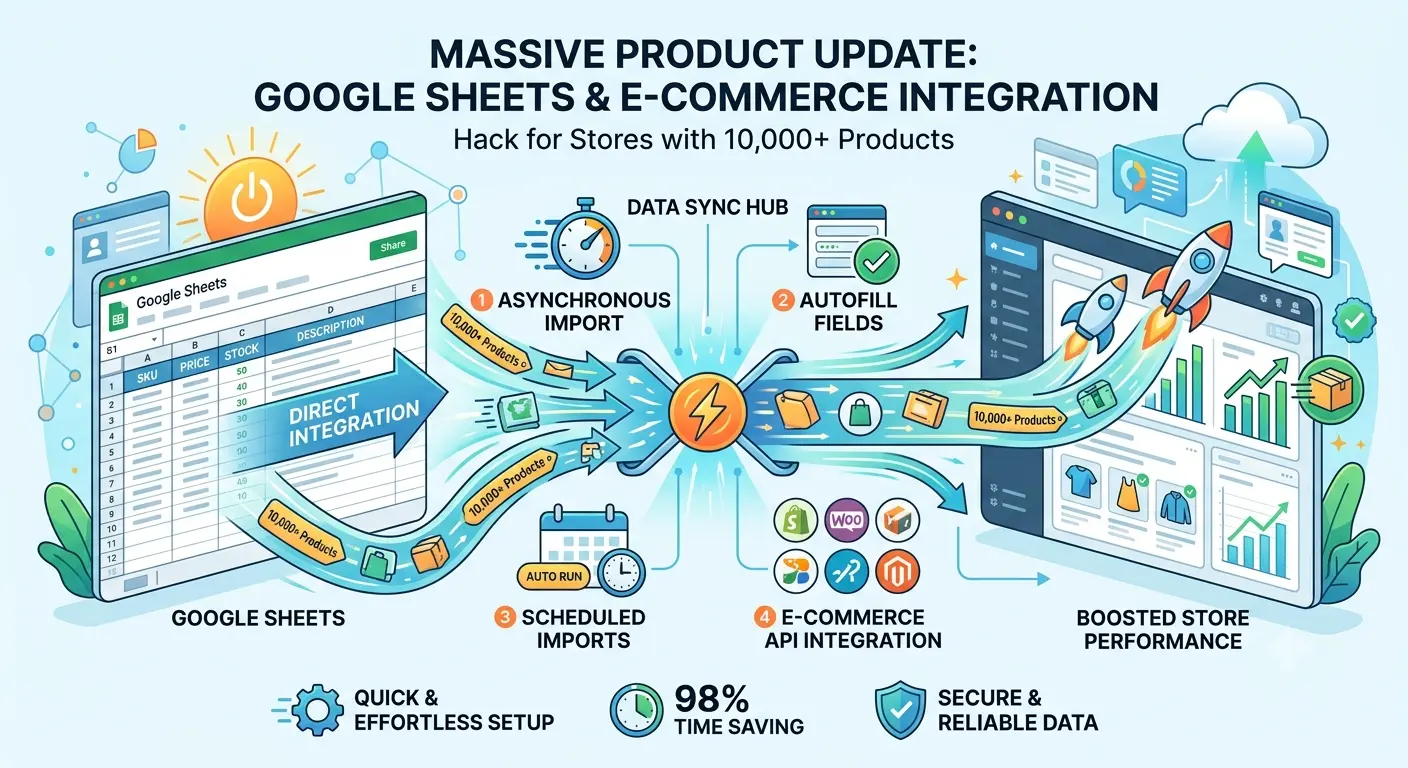
Mass Price & Product Data Update from Google Sheets: Tips for Stores with 10,000+ Products
Update prices, stock and attributes for tens of thousands of products in a few clicks. Direct Google Sheets integration, async import, auto field mapping, scheduled import without human intervention, plus e-commerce API integration and other format support.
📄 Table of Contents
- The Problem: Price Lists Eat Up Your Time
- Google Sheets as a Data Source
- Update vs Add: Two Modes
- How to Prepare a Price List for Import
- Flexible Field Mapping
- Fine-Tuning Import Parameters
- Saving Field Templates
- Async Import
- Scheduled Automatic Import
- Mathematical Markups and Formulas
- Variants: Sizes, Colors, Configurations
- Attributes and Search Filters
- Tips for Large Stores
- API — Full Automation
- Bonus: Importing Reviews
- FAQ
The Problem: Price Lists Eat Up Your Time Pain
If you have a store with 10,000+ products, you know the pain: the supplier sent a new price list, you need to update prices for 3,000 items, change stock for 1,500, add 200 new products, and correct attributes for 500 items. In a typical CMS, that means hours or even days of manual work.
Dropshippers and large retailers have to update their catalog daily. Supplier prices change, items disappear and appear, stock levels fluctuate. Without a powerful import tool, running such a store is nearly impossible.
1. Google Sheets as a Live Data Source Key Feature
BooStore supports direct Google Sheets connection as a data source for import. This means you don't have to download a file, upload it to the server, and repeat the setup every time.
Create a Google Sheet
Enter your data: SKU, price, quantity, name, description, category — any fields you need. Example Google Sheet for import.
Paste the sheet link in BooStore
In the import interface, select "Google Sheets" and paste your sheet URL. The system will load the data automatically.
Configure field mapping
Specify which column holds the SKU, price, name, etc. The system will remember the settings — everything will be ready for the next import.
Run the import or set up auto-update
You can run a one-time import or configure automatic updates on a schedule.
2. Update vs Add: Two Modes Flexibility
One of the strongest features of import in BooStore is the ability to separate the request type. You can both update existing products and add new ones — in the same file.
🔄 "Update Only" Mode
Check the "Update only" box — and the system will only update products already in the catalog (by SKU or ID). Images, categories and other "heavy" fields are not overwritten. Ideal for daily price and stock synchronization.
What can be updated:
- Price (retail, old, wholesale, purchase)
- Quantity in stock (+/- to stock)
- Availability (yes/no/on order/hide/disable)
- Name, description, attributes
- Manufacturer, category, collection
- Labels, sort priority, new/hot/sale status
- Variants (colors, sizes) individually
📦 "Add + Update" Mode
Uncheck "Update only" — and the import will start creating new products for rows where SKU is not found. If a product with that SKU already exists, it will be updated.
3. How to Prepare a Price List for Import Practice
Before importing, you need to understand the data structure. BooStore offers two paths: export your current catalog as a template or configure fields manually.
📦 Export as Template — the Fastest Start
Export products from the BooStore admin panel — you will get a ready-made file with all the system columns. You can use it as a template: just fill in your data in the corresponding columns.
The export is flexibly configurable. The following field groups are available:
🔍 Search and Filters
Specify products, names, product types, categories, manufacturers, collections, suppliers, languages for export.
📄 Product Data
Short description, categories, images (including additional ones), brand, collection, related products, full description, tabs.
🔄 Variants
Export variants with the "Split variant" option — each variant as a separate row for easy editing.
📈 Extended Data
Supplier and purchase price, wholesale prices, delivery data, product types and attributes, access, currency in ISO, UTM labels.
Quick Field Selection During Export
To avoid selecting dozens of fields one by one, use ready-made presets:
- Select main — basic field set for a quick start
- Select all (without variant) — full set without variants
- Select all — all available catalog fields
File Structure for Import
When importing, you can use a file of any structure. The system will identify where the data is, or you can specify the mapping manually. Supported formats:
- Google Sheets — by URL, live data
- CSV / XLS (Excel) — file upload or via clipboard
- XML / YML — any structures with flexible mapping
- ZIP archives — with XML/CSV inside
4. Flexible Field Mapping — Configure for Your Price List
Every supplier sends a price list in their own format. One calls the column "Article", another calls it "SKU" or "Product Code". A third writes the price as "RRP" or "Online Store Price".
BooStore lets you manually specify field mapping for any file. After loading data, you see the list of columns from your price list and choose the system field for each one:
📋 Auto-detection
The system automatically identifies typical fields: name, price, SKU, quantity, availability. Works in multiple languages (EN, UA, PL, RU and others).
✎ Manual Setup
Any field from your price list can be mapped to any system field. Even map "Note" to "Meta-description".
📦 Export Template
Download a product export from your site — it will serve as a ready-made template. The system will match all fields by headers automatically.
💾 Clipboard
Copy rows directly from Excel or Google Sheets — paste them into the import form. Data loads instantly.
Available fields for import include dozens of parameters:
- Main: Product Code/SKU, Product ID, Name, Price, Old Price, Markup, Purchase Price
- Stock: Availability (0-5 + text), Quantity in stock (+/- increment)
- SEO: Meta-title, Meta-description, Meta-keywords, SEO URL (slug)
- Descriptions: Short description, Full description, Description tabs (up to 5 HTML tabs)
- Categorization: Category (ID or title), Manufacturer, Collection, Supplier
- Variants: Variant title, values, ID, update/delete
- Attributes: Product type, attribute values for search filter
- Images: Main + 16 additional, overwrite, protective Watermark
- Labels: Tags, New, Best Seller, Discount, Promotion (with timer)
- Trade: Wholesale price, Minimum wholesale order, Related products
- Delivery: Parameters, cost, terms, dimensions, weight
- Additional: Sort priority, Access (on/off), Delete product, Unit price
In practice — all product card fields are available: comment settings, delivery parameters, minimum order restrictions, wholesale prices, promotion statuses, timers, labels, Watermark and any other attributes. The system does not limit your choice of data for import.
5. Fine-Tuning Import Parameters Full Control
Before running an import, BooStore offers dozens of settings that give you full control over the process. Here is the full list:
🔒 Row Filters
Do not import first row, rows without product code, variants without code, product without category, product without photo.
🔄 Processing Modes
Update only (without images), add new only, update in other languages, auto-search in other languages.
📋 Encoding and Currency
File in Windows-1251 encoding, currency selection (₴ UAH, $ USD, € EUR, ₽ RUB and others), "Ignore currency" option.
📦 Images
Do not check images for previously uploaded, convert to WebP, check main image, overwrite images in text, split cell with images.
📈 Categories and Markups
Alternative category, specify categories for import, add markup, set "Out of stock" for others.
📊 Variants
Update variant by product code, consider variant, consider product types and attributes.
📄 Additional
Auto-replace text, remove "New" for others, do not clear YML&RSS&XML cache, check title for duplicates.
💾 Presets and Limits
Remember field selection #1/2/3, shorten result display, limit of processed rows (from which row to which row to import).
🔄 Check Title for Duplicates
During import, the system looks for products with the same name. If found — updates the card, if not — creates a new one.
📈 Overwrite Image Paths in Text
Automatically replaces image paths in descriptions with new ones — uploaded to your site. No external server links in the text.
6. Saving Field Templates — for Regular Suppliers
Imagine: you have 5 suppliers, and each sends a price list in their own structure. Configuring field mapping manually every time is painful.
BooStore solves this: you can save up to 3 field mapping sets ("Remember field selection #1", "#2", "#3") and load them with one click via the "Fill field mapping selection" button.
- Upload a supplier's price list "Horns and Hooves"
- Configure field mapping once
- Save the template as "Remember field selection #1"
- Next time — just select the preset and run the import
Templates work for both manual and automatic import. Set it up once — and the system uses this preset for every scheduled update.
7. Async Import — Work Without Blocking
When you import 10,000+ products, regular "synchronous" import makes you wait — the page hangs, the browser spins a spinner, you can't do other tasks.
BooStore uses async import v1.0. The system starts processing in the background, and you can:
- Close the page — the import continues working
- View execution logs during import in the "Import products" → "Show previous import result" section — last updated/added products, row number, full report on updates, skips and errors. More than 10 last imports available in logs.
- Edit products, configure the store
- Receive a completion report by email
The async mechanism is especially important for stores with tens of thousands of products — the import runs in the background without loading the admin interface.
8. Scheduled Automatic Import Auto
A key feature for dropshippers and large stores — fully automatic catalog updates without human involvement.
How to set up auto-import
Specify the name and source
Set the source name and select the protocol: FTP, HTTP, HTTPS, Google Table or Windows-1251 encoding. You can also specify a login and password for file access.
Configure the schedule
Update interval: from 4 hours to 30 days. You can add up to 30 sources with different intervals and priorities.
Select mode and parameters
Automatic import (update) or upload new products. Configure filters: do not import without code, without category, without photo; check title for duplicates; set "Out of stock" for others; remove "New".
Configure markup and images
Enable auto-markup with action priority (on purchase or retail, with conditions). Configure WebP, "Overwrite images in text", "Split cell with images", "Specify categories for import".
Specify field mapping
Specify the column order separated by commas (find values on the import page) or use the saved preset "Remember field selection #2" for update and "#3" for add.
Save and forget
Up to 30 sources with different intervals, field settings and priorities. Automatic import is available for sites with a parked domain and paid hosting.
Result Notifications
After each automatic import, the system can send a notification:
- Email — detailed report: how many updated, added, errors
- Telegram — brief summary to messenger
- Push notification — to the browser
9. Mathematical Markups and Formulas
Often you don't just need to set a price from the price list, but apply a markup. BooStore allows you to specify a markup as a mathematical expression directly in the import field.
Available operations:
This is especially convenient when working with suppliers that provide recommended retail prices — you can apply your markup right during the import.
10. Variants: Sizes, Colors, Configurations Flexible
For clothing, footwear, electronics stores and any products with options, BooStore supports importing and updating variants. Variants can be updated either in the general price list along with other products, or in a separate file — the system recognizes them by the marker in the "Variant update" column.
Two ways to update variants
Method 1: In the general price list
Simply add rows with variants in the same file as the main products. Set the value 1 in the "Variant update" column — the system will understand that this is a variant of an existing product.
Method 2: Separate file
Upload a file with only variants. The system will update variants by SKU, price, stock. To do this, check the "Update variant by product code" box.
What can be changed in variants
- Price — individual price for each option
- Availability and quantity — separately for each color/size
- SKU and ID — unique variant codes
- Priority (order) — variant sorting
- Wholesale price — for variants sold wholesale
- Old price — for promotions on specific variants
- Dimensions and weight — if sizes differ
- Access — hide a specific variant
Deleting variants
To delete a variant, enter any value in the "Delete" column: 1, delete, Yes.
Variant handling
The "Consider variant" option allows you to completely overwrite variant data (including name and styles). Use it when you need to radically update options. Important: do not use it simultaneously with update by product code to avoid data conflicts.
Export variants as a separate file
When exporting products, you can enable the "Export variant" option and then select "Split variant" — the system will create a separate file with only variants. This is convenient when you need to give the supplier a clean template for filling in prices and stock for each option.
11. Attributes and Search Filters SEO+UX
You can bulk upload product types and attribute values that will be used in the search filter on the storefront.
Two methods for importing attributes
Method 1: All attributes in one cell
Each attribute is specified on a new line inside the same cell. This is convenient when you have many parameters and want a compact file:
Method 2: Attributes in separate columns
When exporting, you can configure "Split attributes into columns" — then each parameter will be in its own column. This is convenient for clarity and editing:
How to prepare attributes for import
- First, export products — you will get the cell structure with attributes
- Fill in the attributes in the price list (using either of the two methods)
- During import, the system will check the values and link them to the search filter
12. Tips for Large Stores Advice
📋 Multiple Sources
Configure different Google Sheets for different suppliers. Each with its own field settings and schedule.
⚡ Supplier Priority
Use different suppliers for the same product. Whoever gives the best price gets priority.
🔄 Combine Modes
One source set to "Update only" (daily), another to "Add + Update" (once a week).
📊 Formulas in Google Sheets
Use Google Sheets formulas for automatic price calculation. For example: =B2*1.25 (25% markup).
🔒 Pre-Import Validation
Enable "Do not import rows without SKU" and "Do not import product without category" — the system will skip invalid rows.
📦 ZIP Archives
If the file is very large — pack it into a ZIP. The system will unpack and process it as a regular source.
📄 Row Limit
Specify a range: from which row to start and which to finish. Useful for limiting import to only the needed rows or for test imports before full loading.
📈 Auto-Replace Text
Allows you to replace part of a phrase, image path or category in descriptions. You can specify which fields to overwrite, not all of them.
📈 Overwrite Image Paths in Text
If the description contains a link to an image from the source site and the file name matches the one uploaded during import — the path will automatically be replaced with your site's URL. No external server links in the content.
📦 Different Formats on One Platform
Google Sheets, CSV, XLS, XLSX, XML, YML, ZIP archives with XML/CSV inside — all these formats can be used simultaneously for different suppliers within a single store.
13. API — Full Catalog and Order Automation For Developers
In addition to import from Google Sheets, Excel and XML, BooStore provides full-featured CommerceAPI v2.0 for complete store automation.
Through the API you can:
- Create, update and delete products
- Manage categories, collections, manufacturers
- Update stock and prices in real time
- Create and process orders from external systems
- Get sales statistics and reports
API is the ideal solution for integration with 1C, ERP, CRM or your own warehouse system. You can set up two-way synchronization and fully automate catalog management.
14. Extra Bonus: Importing Product Reviews Bonus
BooStore supports fast review import with ratings for products. All reviews have a proper schema.org structure, which allows Google to show rating stars in search results (rich snippets).
What can be imported:
- Review text and rating (1-5)
- Author name and date
- Link to a specific product (by SKU or ID)
Having reviews with star ratings increases CTR in search results and visitor trust in your store.
Video Tutorial on Product Import
Watch a detailed video tutorial that clearly shows all stages of product import on the BooStore platform:
Summary: What Mass Import from Google Sheets Gives You
| Scenario | Without BooStore | With BooStore |
|---|---|---|
| Updating prices for 5,000 products | 2-3 days | 3 minutes |
| Adding 1,000 new products with photos | 1-2 days | 5 minutes |
| Daily synchronization with supplier | Manual work for hours | Automatic on schedule |
| Updating attributes and filters | One by one in admin panel | Bulk from table |
| Configure for supplier format | From scratch every time | Saved templates |
| Import 50,000 products | Times out | Async, no timeouts |
| Updating variants | Each variant manually | Bulk from price list |
| 1C / ERP integration via API | Requires development | Ready CommerceAPI v2.0 |
| Import reviews with ratings | One by one or not supported | Bulk import with schema.org |
The BooStore platform is built for large-scale e-commerce. The ability to mass-update prices, attributes and variants from Google Sheets is not just "import" — it's a full-fledged product catalog management system that saves hours of work every day.
❓ Frequently Asked Questions
Answers to the most popular questions about mass product import from Google Sheets
Can I update only prices without touching other fields?
Yes. In "Update only" mode, the system only changes the fields whose columns you specified. If your file doesn't have a "Product name" column — the name won't change. This allows you to precisely update prices and stock without affecting descriptions, SEO and other data.
How often can automatic import run?
The interval is configurable from 4 hours to 28 days. You can set different schedules for different sources. For example: check the main supplier every 6 hours and a secondary one once a day.
What happens if the column structure in Google Sheets changes?
The system will follow the configured field mapping. If the column structure changes, you will need to reconfigure the mapping. That's why we recommend not changing the table structure after setting up import — or doing a preliminary check.
Can I update variants with a separate file?
Yes. You can upload a separate file with only variants. Set the value 1 in the "Variant update" column and check the "Update variant by product code" box. The system will update variants by SKU: price, stock, availability, wholesale price, priority and other fields.
How to import attributes — in one column or separate ones?
Both methods are supported. You can specify all attributes in one cell, each on a new line. Or, by using export with the "Split attributes into columns" option, get separate columns for each parameter. During import, the system will correctly handle both formats.
Is import of variants (color, size) supported?
Yes. You can update variants by product code (SKU), add new options, delete existing ones. Everything is supported: variant price, stock, SKU, image, sort priority, wholesale price, availability status.
Can I import products with attributes for the search filter?
Yes. During import, you can specify the product type and attribute values. The system will automatically create or update filters for the storefront search. This eliminates manual attribute entry for each product.
What if the supplier sends a price list in XML?
BooStore supports XML / YML import of any structure with flexible field mapping rules. You can also upload ZIP archives with XML/CSV files inside. If you have an unusual format — the system allows you to configure conversion rules.
Is there a limit on the number of products during import?
The default limit is about 20,000 products per import. This is enough for most stores. If you need to import more, there are two options: contact support to increase the limit, or use automatic import with a row limit "from and to", specifying the same source with different row ranges.
Can I import images and convert them to WebP?
Yes. During import you can specify image URLs (main + up to 16 additional) — the system will download them. The "Convert images to WebP" option automatically compresses and converts all photos to the modern format. This speeds up site loading and improves PageSpeed. Also available: Watermark overlay, overwriting existing photos, splitting cells with images and overwriting paths in description text.
What is "Markup" during import and how does it work?
Markup is a mathematical expression applied to the price from the file. Available operations: +XX, -XX, *XX, /XX, XX%, +XX%, -XX%. For example, for a 25% markup specify +25%. The result is rounded to two decimal places.
Can I set a row limit for a test import?
Yes. In the import parameters there is a "Limit of processed rows" field. Set the value 10 for a test to check that everything works correctly. When you're sure — remove the limit (set 0) for the full import.
What if the import fails with errors?
BooStore generates a detailed error log after each import. It shows which rows failed and why (invalid format, product not found in database, duplicates). You can download the log as CSV, fix the problematic rows, and re-run import for just those items. Support is always available for complex cases.
Can I set up import on a schedule?
Yes, BooStore supports automatic scheduled import. You can set the interval from 4 hours to 28 days for each data source. Imports run automatically in the background, and you receive an email notification with the results. This is ideal for regular price and stock updates from suppliers.