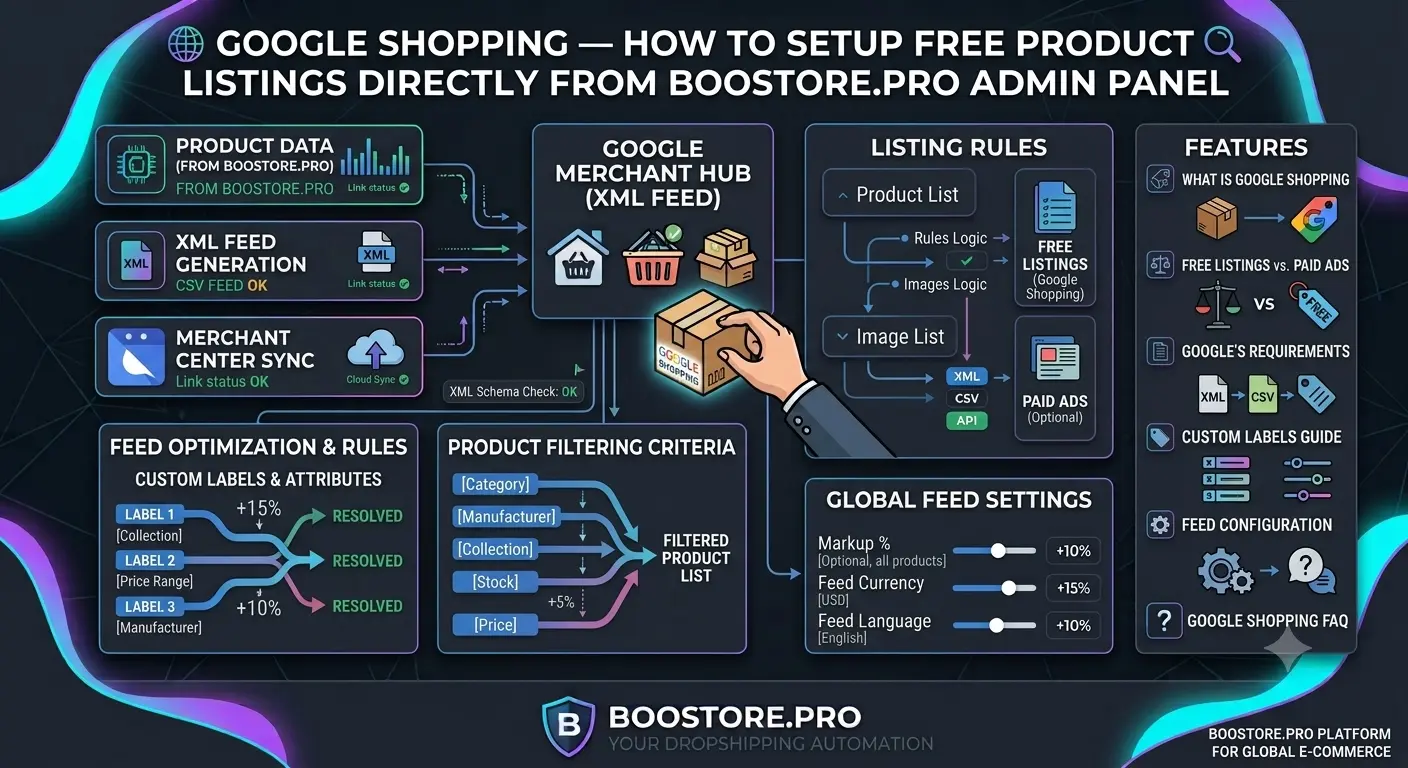
Google Shopping — how to set up free product listings directly from the BooStore admin panel
Complete guide to setting up free Google Shopping product listings through the BooStore admin panel. Google Merchant XML feeds, custom labels, product filtering by categories, collections, manufacturers, stock and price, markup, currency and feed language switching — everything you need to launch free traffic from Google.
📄 Table of Contents
- What is Google Shopping and how it works
- Free vs paid product listings: comparison
- Google website requirements: shipping, payment, returns
- Custom Labels (custom_label_0 — custom_label_4): complete reference
- Setting up Google Merchant XML feed in the BooStore admin panel
- Product filtering for feed: category, collection, manufacturer, stock, price
- BooStore XML feed URLs
- Markup, currency, language, availability status: flexible feed settings
- Frequently Asked Questions
What is Google Shopping and how it works
Google Shopping is a Google service that displays products directly in search results. When a user searches for "buy Nike sneakers size 42", Google can show a product card with a photo, price, store name and rating right above regular links. This is called a Shopping ad.
Previously, Shopping ads were only paid (Google Shopping Ads / Performance Max). Since 2020, Google launched free product listings — your product can appear in Google Shopping without paying per click. You only need to submit your product data through Google Merchant Center.
Google Shopping works with two services together:
- Google Merchant Center — receives your product data (XML feed), checks it for compliance with rules and displays it in search
- Google Ads — if you want paid listings, you create a Performance Max campaign and link it to Merchant Center
Complete guide to setting up Google Ads, Merchant Center and Performance Max for an online store.
How free listings look in Google search
When a user enters a search query with commercial intent (e.g., "buy Samsung smartphone" or "order Nike sneakers"), Google may show:
- Paid listings — marked with "Ad" badge, shown at the top of results. You pay for each click.
- Free listings — not marked as ads, shown below paid ones or in the "Shopping" tab. No payment per click.
- Organic results — regular links to websites, not product listings.
Free listings are especially effective for products with unique names and specific characteristics — users see the photo, price and store name immediately, increasing the likelihood of a click.
Which products appear in free listings
Google automatically determines which products to show for free based on query relevance. Impressions are influenced by:
- Data quality — accurate titles, descriptions, attributes, GTIN
- Price — competitive pricing increases chances of display
- Availability — in-stock products are shown more often
- Relevance — how well the product matches the search query
- Store history — seller rating, reviews, time on platform
Free vs paid product listings: comparison
Many store owners don't know that Google Shopping can be used for free. The table below shows key differences.
| Parameter | Free listings | Paid listings (Performance Max) |
|---|---|---|
| Click cost | Free | Pay per click (CPC) or per conversion |
| Where shown | Shopping tab, regular search | Shopping tab, regular search, YouTube, Gmail, Discover |
| Feed setup | Required | Required |
| Website requirements | Full: shipping, payment, returns | Same requirements |
| Budget control | No cost | Full daily budget control |
| Traffic volume | Lower, depends on competition | Higher, guaranteed impressions |
| When to launch | Right after Merchant Center moderation | When scalable traffic is needed |
| Recommendation | Mandatory for all stores | After debugging free traffic |
Google website requirements: shipping, payment, returns
Before products start appearing in Google Shopping, your store must pass Google Merchant Center moderation. Google checks that the buyer can learn all purchase terms before placing an order. This is critical — without meeting these requirements, products won't appear even in free listings.
What must be on the website
🚚 Shipping page
Must contain:
• Shipping cost (amount or "free")
• Shipping times (in days)
• Shipping zones (countries, regions)
• Shipping methods (courier, post, pickup)
💳 Payment page
Must contain:
• All available payment methods
• Description of each method
• Payment security information
• Payment currency
📦 Returns page
Must contain:
• Product return conditions
• Return periods
• Who pays for return shipping
• Return procedure
🔒 Privacy policy
Must contain:
• What data is collected
• How data is used
• Data retention periods
• Contact for questions
Pre-moderation checklist
| # | Check item | Location | Status |
|---|---|---|---|
| 1 | Shipping page with prices and timelines | Site footer | Required |
| 2 | Payment page with all methods | Site footer | Required |
| 3 | Returns page with conditions | Site footer | Required |
| 4 | Privacy policy | Site footer | Required |
| 5 | Contact page (phone, email) | Footer / header | Required |
| 6 | Prices on site = prices in feed | Product pages | Required |
| 7 | SSL certificate (https://) works | Entire site | Required |
| 8 | About Us page or company information | Menu / footer | Recommended |
| 9 | Terms and conditions page | Footer | Recommended |
| 10 | Checkout works without errors | Cart | Required |
Before launching, be sure to go through the 29-point checklist for launching an online store — it will help identify issues before Google finds them.
Custom Labels (custom_label_0 — custom_label_4): complete reference Important
One of the most powerful features of Google Merchant Center is custom labels. You can assign up to 5 custom labels to each product (custom_label_0, custom_label_1, custom_label_2, custom_label_3, custom_label_4). Then in Google Ads, you can create campaigns that show ads only for products with a specific label.
For example: you want to run a separate ad campaign for products with 50% markup or only for products from a specific manufacturer. Custom labels allow you to do this without creating multiple feeds.
| Label | Purpose | Example value | Used in Google Ads for |
|---|---|---|---|
| custom_label_0 | Seasonality / promotions | new-year-2027, summer-sale, black-friday | Separate campaign for holiday season |
| custom_label_1 | Margin / markup | high-margin, low-margin, promo | High-budget campaign for margin products |
| custom_label_2 | Manufacturer / brand | nike, adidas, samsung, apple | Ad group for a specific brand |
| custom_label_3 | Product type / category | shoes, electronics, clothing, books | Segmentation by product categories |
| custom_label_4 | Status / availability / discount | in-stock, out-of-stock, discount-20, new-arrival | Campaign only for in-stock or discounted products |
Example of custom labels setup for a clothing store
Suppose you have a clothing store. You want to flexibly manage ad campaigns:
- custom_label_0 = collection (fall-winter 2026, spring-summer 2027)
- custom_label_1 = markup (50%, 100%, 200%)
- custom_label_2 = manufacturer (Nike, Adidas, Puma)
- custom_label_3 = product type (sneakers, t-shirts, jackets)
- custom_label_4 = stock (>10, 1-10, 0)
Now in Google Ads you can create:
- Campaign only for Nike sneakers with 100% markup — condition: custom_label_2 = Nike AND custom_label_3 = sneakers AND custom_label_1 = 100%
- Campaign for fall-winter products with stock >10 — condition: custom_label_0 = fall-winter AND custom_label_4 = >10
This gives incredible flexibility without needing to create multiple feeds.
Setting up Google Merchant XML feed in the BooStore admin panel Step by step
BooStore has a built-in XML feed generator for Google Merchant Center. All settings are available in the admin panel — no coding or third-party plugins needed. Below is a step-by-step instruction.
Open XML feed settings in the admin panel
Go to "Store" → "Exports" → "Export to Google Merchant (XML)". You will see the feed settings page: product filters, custom labels, markup, currency, language, availability status.
Configure product filtering for the feed
Select which products will be included in the feed. Available filters: category, collection, manufacturer, product type, availability status (in stock / out of stock), price range (from and to). You can combine filters. More — in the filtering section.
Configure custom labels fields
For each of the 5 labels (custom_label_0 — custom_label_4), select which product data will be placed there. Options: collection, manufacturer, product type, category, stock, price, markup. This determines how you can segment products in Google Ads.
Configure feed parameters: markup, currency, language, availability status
Specify:
- Markup — add a percentage or fixed amount to the product price in the feed (e.g., to compensate Google commission)
- Currency — select the feed price currency (UAH, USD, EUR, PLN and others)
- Language — select the feed language (en, ru, ua, pl)
- Availability status — how to determine product availability: by stock (>0 = in stock) or by the "Out of stock" option
Save settings and check the feed URL
After saving the settings, the system will automatically generate an XML feed at your store's URL address. Check the feed by opening the URL in a browser or through the Diagnostics tool in Google Merchant Center.
Add the feed URL to Google Merchant Center
In your Google Merchant Center account, go to "Products" → "Feeds". Create a new feed, select "Web address" type and enter your XML feed URL. Google will automatically check the feed every 24 hours and update data.
Product filtering for feed: category, collection, manufacturer, stock, price
Not all products from your store need to go into Google Shopping. You might want to show only products that are in stock, or only a specific category. BooStore allows flexible filtering directly in the admin panel.
Available filters
| Filter | Description | Example setting |
|---|---|---|
| Category | Select one or more product categories | Only "Shoes" and "Accessories" |
| Collection | Products from a specific collection / set | Collection "New Arrivals 2026" |
| Manufacturer | Products of a specific brand / manufacturer | Nike, Adidas, Puma |
| Product type | Filter by product type (attribute) | Only "Sneakers" |
| Availability status | Only in stock / only out of stock / all | Only "In stock" |
| Price from/to | Products in a specific price range | From 500 UAH to 10000 UAH |
Combining filters
Filters work on the logical AND principle. If you selected category "Shoes" and manufacturer "Nike", only products of category "Shoes" AND manufacturer "Nike" will go into the feed.
Example: you want to run free listings for all products in stock, and for Performance Max — only for products with markup >50%. You create two feeds: one without markup filter, the second — with a "High margin" collection filter.
BooStore XML feed URLs
BooStore generates XML feeds at your store's standard URL addresses. You don't need to upload files manually — the feed updates automatically with each request.
🔗 Main feed
https://YOURSITE.boostore.pro/xml_google_merchant.xml
Standard Google Merchant feed without product variants. Each product is represented by one item. Suitable for most stores that don't use sizes/colors.
🔗 Feed with variants
https://YOURSITE.boostore.pro/xml_google_merchant_with_param_and_variants.xml
Extended feed that includes all product variants (sizes, colors, materials) as separate items. Each variant has its own SKU, price and stock. Required for clothing, footwear, electronics stores with options.
XML feed example
Below is a fragment of the XML feed generated by BooStore:
<?xml version="1.0" encoding="UTF-8"?>
<rss xmlns:g="http://base.google.com/ns/1.0" version="2.0">
  <channel>
    <title>My Store</title>
    <link>https://mystore.boostore.pro</link>
    <description>Online store</description>
    <item>
      <g:id>12345</g:id>
      <g:title>Nike Air Max 270 Sneakers</g:title>
      <g:description>Comfortable sneakers for running and everyday wear</g:description>
      <g:link>https://mystore.boostore.pro/product/12345</g:link>
      <g:image_link>https://mystore.boostore.pro/images/nike-air-max-270.webp</g:image_link>
      <g:availability>in_stock</g:availability>
      <g:price>4999.00 UAH</g:price>
      <g:google_product_category>123</g:google_product_category>
      <g:brand>Nike</g:brand>
      <g:custom_label_0>new-arrival</g:custom_label_0>
      <g:custom_label_1>high-margin</g:custom_label_1>
      <g:custom_label_2>nike</g:custom_label_2>
      <g:custom_label_3>shoes</g:custom_label_3>
      <g:custom_label_4>in-stock</g:custom_label_4>
    </item>
  </channel>
</rss>
Markup, currency, language, availability status: flexible feed settings
BooStore allows you to fine-tune feed parameters for your business needs. Let's look at each parameter in detail.
Markup
You can add a percentage or fixed markup to the product price in the feed. Why is this needed?
- Commission compensation — if you sell on marketplaces with commission, you can set a price including the commission
- Promotional prices — set 0% markup for promotional products and 20% for regular ones
- Different prices for different channels — one price on the site, and in Google Shopping — with a shipping markup
Markup is set as a percentage (e.g., 15% = price in feed will be 15% higher) or a fixed amount in currency.
Feed currency
Google Merchant Center requires the currency in the feed to match the currency of the country where ads are shown. BooStore supports all major currencies:
- UAH — for Ukraine
- USD — for USA and international campaigns
- EUR — for Europe
- PLN — for Poland
- GBP — for UK
- Other currencies on request
Feed language
Select the language for product titles and descriptions in the feed. Available: English (en), Russian (ru), Ukrainian (ua), Polish (pl) and others. The feed language should match your site language and target audience.
Availability status
Google uses three availability statuses: in_stock, out_of_stock, preorder.
In BooStore feed settings, you can choose how the status is determined:
- By stock — if stock > 0 → in_stock, otherwise → out_of_stock
- By "Out of stock" option — product marked as "Out of stock" → out_of_stock
- Combined — both by stock and option
Example of feed setup for an international store
Suppose you have a store selling in Ukraine and Poland. You want:
- For Ukrainian customers — prices in UAH, Ukrainian language, 10% markup
- For Polish customers — prices in PLN, Polish language, 15% markup
On BooStore, you create two feed setting sets with different currency, language and markup parameters. Each set generates its own URL. You add both URLs to Google Merchant Center as separate feeds.
Google Product Categories: proper product categorization SEO
Google uses its own product category taxonomy — Google Product Categories. These are numeric identifiers that help Google correctly classify your product and show it in relevant search queries. For example, "Shoes" has ID 187, "Athletic Shoes" — 188, "Sneakers" — 189.
How to set a category on BooStore
Google category is set in two ways:
- In store category settings — you map each store category to a Google category. All products in that category automatically get the corresponding ID.
- Individually for a product — if a product should be in a different Google category, you can set it in the product card. Individual setting overrides the category setting.
Examples of popular Google categories
| Category ID | Name (English) | Name (native) | For which products |
|---|---|---|---|
| 187 | Shoes | Shoes | All footwear: sneakers, boots, shoes, ankle boots |
| 222 | Clothing | Clothing | T-shirts, jackets, dresses, jeans |
| 233 | Electronics | Electronics | Smartphones, laptops, headphones, accessories |
| 412 | Health & Beauty | Health & Beauty | Cosmetics, creams, shampoos, vitamins |
| 632 | Toys & Games | Toys & Games | Dolls, building sets, board games, puzzles |
| 66 | Sports & Outdoors | Sports & Outdoors | Fitness equipment, balls, camping, bicycles |
The full list of Google Product Taxonomy categories is available in Google documentation — it contains over 6000 categories. BooStore supports the full taxonomy; you can select the desired category from the dropdown list in the admin panel.
Google Merchant Center registration and setup: step-by-step guide
After configuring the XML feed on BooStore, you need to register in Google Merchant Center and add the feed. Below is a step-by-step guide for beginners.
Create a Google Merchant Center account
Go to merchants.google.com and sign in with your Google account. Click "Create account". Enter your store name, country, currency. Select "Online store" as business type. After creating the account, you'll be taken to the Merchant Center dashboard.
Fill in your business information
In "Tools" → "Business information", enter: company name, legal address, phone number, business hours. This information must match the data on your website. Google may verify this data.
Add the XML feed from BooStore
Go to "Products" → "Feeds". Click "Add feed". Select the country and language (must match the feed settings on BooStore). Select "Web address" type and paste your XML feed URL:
https://YOURSITE.boostore.pro/xml_google_merchant.xml
Set update frequency — once a day.
Verify website ownership
Google will require you to prove you own the site. The easiest method is an HTML tag. Copy the meta tag from Merchant Center and add it to the section of your site. On BooStore, this is done in "Settings" → "Meta tags and scripts". After adding, click "Verify" in Merchant Center.
Configure shipping settings
In "Tools" → "Shipping", configure zones, cost and delivery times. This data must match what's written on your store's shipping page. You can set up shipping by flat rate, free shipping, or rate tables.
Wait for moderation and check feed status
After uploading the feed, Google will check the products — this can take from several hours to 1-2 days. Go to "Diagnostics" to see the status. If there are errors, fix them on BooStore — the feed will update automatically. After successful verification, products will start appearing in Google Shopping.
Common feed errors and how to fix them
Even with correct feed configuration, Google may detect errors. Below are the most common issues and their solutions.
| Error | Cause | Solution on BooStore |
|---|---|---|
| Missing value [price] | Product has no price | Check the product in the admin panel — set a price. Price is required for all products in the feed. |
| Missing value [image_link] | Product has no image | Add a product image. BooStore automatically converts it to WebP. |
| Missing value [availability] | Availability status not set | In feed settings, select how availability is determined: by stock or by option. |
| Value too long [title] | Title longer than 150 characters | Shorten the product title in the admin panel. Google does not accept titles longer than 150 characters. |
| Disapproved: Shipping | Shipping settings not configured | Set up the shipping page on the site and shipping settings in Merchant Center. Shipping guide. |
| Disapproved: Tax | Tax settings not configured | In Merchant Center go to "Tools" → "Tax" and set the tax rate for your country. |
| Price mismatch | Price in feed and on site differ | Check if markup is enabled. If markup is needed, make sure the site price matches the feed. |
| Account suspended | Serious Google policy violations | Check the site for compliance with all Google requirements: shipping, payment, returns, contacts, privacy policy. |
Where to check errors
All errors are displayed in Google Merchant Center in "Products" → "Diagnostics". We recommend checking this section every 2-3 days after launching the feed. On BooStore, you can quickly fix data — the feed will update automatically on the next Google check.
Best practices for maximum Google Shopping effectiveness
To get the most traffic from free listings, follow these recommendations. They are based on the experience of successful stores on BooStore and official Google recommendations.
🔍 Optimize product titles
The title should contain keywords that buyers search for. Formula: [Brand] [Product type] [Key features]. Example: "Nike Air Max 270 Men's White Size 42 Sneakers". Don't use ALL CAPS, exclamation marks and unnecessary characters.
📷 Use high-quality images
Google requires images at least 100x100 pixels. We recommend 800x800 and above on a white background. BooStore automatically converts images to WebP for faster loading. Better photos mean higher CTR.
📈 Use custom labels for segmentation
Divide products by margin, seasonality and brands. Run separate campaigns for high-margin products. This increases ROI and allows efficient budget allocation for paid campaigns.
💰 Monitor competitor prices
In Google Shopping, users see the price immediately. If your price is higher than competitors — CTR will be lower. Regularly check prices and adjust them. BooStore allows bulk price updates via Excel or Google Sheets import.
⚡ Update stock in time
If a product is out of stock but marked as in_stock in the feed — Google may suspend your account. On BooStore, stock is synced automatically. If you use scheduled import, make sure the update interval is no more than 4 hours for high-demand products.
📝 Add GTIN and MPN
Google recommends providing GTIN (Global Trade Item Number) for all products. Products with GTIN get higher data quality and rank better. MPN (Manufacturer Part Number) is an additional identifier. Both fields can be imported via Excel on BooStore.
❓ Frequently Asked Questions about Google Shopping on BooStore
Answers to questions that most often arise when setting up free Google Shopping product listings through the BooStore admin panel.
How do free Google Shopping product listings differ from paid ones?
Free listings don't require payment per click — you only pay Google if you run paid Performance Max campaigns. The product feed is the same for both types. Free listings appear in the Shopping tab and regular search, paid ones — additionally in YouTube, Gmail and Discover. We recommend first setting up free listings, then Performance Max for scaling.
How to add markup to products in the Google Shopping feed?
In the BooStore admin panel in the Google Merchant feed settings, there is a "Markup" field. You can specify a percentage (e.g., 15%) or a fixed amount. The price in the feed will be automatically recalculated. This is useful if you want to compensate for Google commission or show a different price in Shopping than on the site. More about BooStore settings.
Can I create multiple feeds for different purposes (free, Performance Max, different countries)?
Yes. In the BooStore admin panel, you can create multiple feed setting sets with different filters, markup, currency and language. Each set generates a unique URL. For example: one feed for free listings (all products in stock), second for Performance Max (only products with markup >50%), third for the Polish market (PLN, Polish language). All URLs are added to Google Merchant Center as separate feeds.
How often does the XML feed update on BooStore?
The feed is generated in real time with each request. If you changed a product's price, stock or title in the admin panel, changes immediately reflect in the XML feed. Google Merchant Center checks the feed approximately every 24 hours and retrieves updated data. You can also manually request a feed update in the Merchant Center interface by clicking "Update" in the "Diagnostics" section.
What Google requirements need to be met before launching the feed?
Before launching the feed, you must: 1) Add shipping, payment, returns and privacy policy pages to your site — all accessible from the footer. 2) Fill in company information (name, address, phone). 3) Ensure prices in the feed match prices on the site. 4) Make sure products have unique IDs, correct titles and images. More — guide to shipping and payment pages and 29-point checklist.
Which custom labels are best to use for a clothing online store?
Recommended scheme for a clothing store: custom_label_0 = collection (season, e.g., "fall-winter 2026"), custom_label_1 = markup/margin ("high", "medium", "low"), custom_label_2 = brand (Nike, Adidas), custom_label_3 = product type (sneakers, t-shirts, jackets), custom_label_4 = stock status (>10, 1-10, 0). This gives maximum flexibility for targeting in Google Ads. More — Performance Max guide.