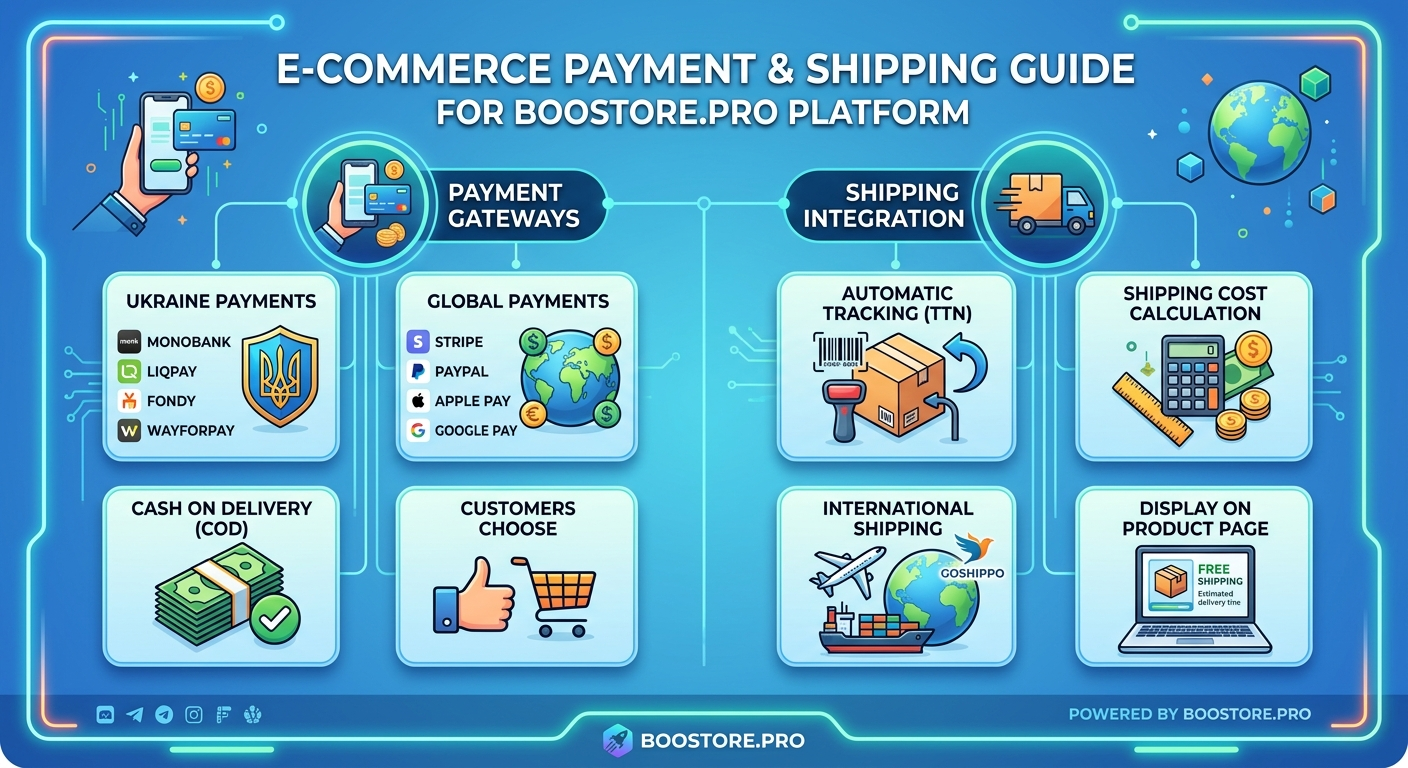
Online store payment methods: how to accept money (Ukraine and the world)
A practical guide to accepting payments and setting up delivery in an online store on BooStore. We cover connecting payment systems (Monobank, LiqPay, Fondy, WayForPay, Stripe, PayPal and others), configuring TTN with automatic cost calculation, working with cash on delivery, international delivery via Goshippo and ways to show delivery terms right in the product card. All based on the platform's real functionality.
Table of contents
- What payment methods are available in an online store
- Payment system comparison: fees and capabilities
- Flexible payment acceptance settings
- Cash register, hold, refunds and payment statuses
- Payment invoice without a product and pay-by-link
- Delivery methods: Nova Poshta, Ukrposhta, Meest
- International delivery via Goshippo
- Automatic TTN creation, dimensions and cost calculation
- Delivery and payment in the product card
- Frequently asked questions
💳 What payment methods are available in an online store
To accept money for products, an online store needs at least one payment method. On BooStore you can connect a wide range of payment systems, and the buyer always picks a convenient option right at checkout. If there are several methods — the system shows a list and the customer decides how to pay: by card, via internet banking, in installments or in cash on delivery (cash on delivery).
💳 Online card payment
Internet acquiring via Monobank, NovaPay, LiqPay, Fondy, WayForPay, PrivatBank, Stripe, PayPal, Square and others. The buyer pays for the order immediately after placing it, and the money reaches your account.
📦 Cash on delivery
Payment on pickup at the carrier's pickup point (for example, Nova Poshta cash on delivery). The carrier collects the money for the product and delivery from the recipient at handover.
🕑 Installments and pay in parts
The buyer splits the payment into parts. Supported via LiqPay, Fondy, WayForPay (PayParts), PrivatBank (PayParts), Stripe (KLARNA, Afterpay).
🔗 Pay by invoice and by link
Generate a payment link with price, description and buyer contacts — convenient for sales in messengers and by phone.
All payments happen after the order is placed: the buyer fills in the form, then the system generates a payment number and offers to pay with the chosen payment system. A detailed overview of methods and connection instructions are on the «Payment systems» page and in the knowledge base on online payment.
📊 Payment system comparison: fees and capabilities
The platform does not charge an additional fee for using payment systems. The percentages below are set by the payment services themselves and are deducted from the buyer's payment amount. Data is current on the BooStore platform.
| Payment system | Fee | Recurring payments | Hold | Installments | TTN | Currencies |
|---|---|---|---|---|---|---|
| Monobank monobank.ua | 1.3% / 2.0% | yes | yes | no | yes | UAH |
| NovaPay novapay.ua | 0-1.3% (0% when paying with NovaPay card) | no | yes | no | yes | UAH |
| LiqPay liqpay.ua | 1.3% / 2.0% | yes | yes | yes | yes | UAH, USD, EUR |
| PrivatBank privatbank.ua | 1.3% | no | yes | yes | yes | UAH |
| Hutko hutko.org | 1.5% (from 1.1%) | yes | yes | yes | yes | UAH, USD, EUR, GBP, CZK |
| WayForPay wayforpay.com | 2.0% | yes | yes | yes | yes | UAH, USD, EUR |
| Fondy fondy.io | 2.0% – 2.4% | yes | yes | yes | no | 150+ |
| Stripe stripe.com | 2.9% + $0.30 | yes | yes | yes | no | 135+ |
| PayPal paypal.com | 2.99% + $0.49 | yes | yes | yes | no | USD, EUR, GBP, PLN and more |
| Square squareup.com | 2.9% + $0.30 | yes | no | yes | no | USD, CAD, GBP, EUR and more |
| YooKassa yookassa.ru | ≈3.5% | yes | yes | yes | no | RUB and more |
| WebMoney webmoney.ru | 0.8% | no | no | no | no | USD, EUR, RUB, UAH |
| iPay ipay.ua | 1,3% / 2,0% | no | no | no | yes | UAH |
+2%, +100 USD or +2% +100 USD. This makes it easy to compensate for the bank's fee or set a surcharge for online payment.
How to choose: to start in Ukraine, Monobank and LiqPay are optimal (low fees + TTN support), for large volumes and installments — Fondy and WayForPay, for European and global sales — Stripe and PayPal. Check the exact tariff on the payment system's own website — it can change.
⚙️ Flexible payment acceptance settings
BooStore lets you fine-tune payment acceptance to your business scenarios — from pre-selecting the method to restricting payment until the order is checked.
⚙️ Key payment acceptance scenarios
🎯 Pre-selecting the method
Enable payment method selection right in the checkout form: «Settings» → «Store» → «Currency and payment» → «Payment method selection (in the checkout form)». You can set a name and description for each method.
✅ Payment only after checking
Allow online payment only after manual order verification. The payment button will be sent by e-mail or appear in the order status. This protects against errors in the address and product quantity.
🔒 Payment only by link
Accept payment only when the buyer follows a link with a specified payment system. The chosen method is saved in a COOKIE and applies on subsequent visits from the same device.
🔄 Changing the method after the order
In «Sales statistics» you can change the payment method of an already placed order — the buyer will automatically receive a payment link.
✅ Accepting payments only after order verification
You can enable online payment only after checking product availability. This is especially important when stock levels change quickly or the order requires confirmation (made-to-order, individual product, pre-order).
🔒 Enable verification mode
In the store settings (tab «Store» → «Payment methods») enable the option «Enable payment by payment systems only after order verification».
🛒 Check availability
When the buyer places an order, open it in «Sales statistics» and check the stock. Make sure the product is in stock and the quantity matches.
✅ Allow payment
In the relevant order set the option «Payment» → «Allow online payment» — only after confirmation the customer will be able to pay.
📧 Send the link
Send the buyer a payment link — it will appear on the customer's order view page and arrive by e-mail right when the order is placed.
🌐 Pay-by-link with a payment method
The payment method is set by the GET parameter shop_payment_systems, whose value equals the method ID or several IDs separated by commas. Examples:
shop_payment_systems — enable by defaultshop_payment_systems=1 — only method 1shop_payment_systems=1,2,3 — methods 1, 2, 3shop_payment_systems=+1,2,3 — add to previously selected methodsshop_payment_systems=-1 — remove method 1
The shop_payment_systems parameter can also be sent as a POST request from the form when the buyer places the order.
📋 Cash register, hold, refunds and payment statuses
A modern Ukrainian store needs to not just accept payment but do it in a legally correct way. BooStore supports fiscalization, two-stage payment and refunds.
🏧 Cash register — software cash desk
A software cash register is a program-based cash desk for fiscalizing online payments: the order content is sent for tax reporting. Payment systems supporting cash registers on BooStore: Monobank, NovaPay, LiqPay, PrivatBank, Hutko, WayForPay, iPay.
More about the legal setup of a store — in the article «How to open an online store in Ukraine».
🔐 Hold (two-stage payment)
Freezing funds on the buyer's card without immediate deduction. After checking the order you confirm the deduction (capture) or cancel the freeze (reverse). Supported in Monobank, NovaPay, LiqPay, WayForPay, Fondy, Stripe, PayPal, YooKassa.
🔁 Recurring payments and subscription
Automatic deduction at a set interval: day, week, month or year. Subscription can be enabled automatically or by the buyer's choice — convenient for digital products, services and beauty boxes. Supported by most systems on the platform.
📈 Payment statuses in «Sales statistics»
- Paid online, not checked — set automatically on online payment.
- Checked / Not paid — you change the status after manually checking the payment.
- Allow/block payment — for a specific order, regardless of the general settings.
⚙️ Managing hold and refund via Commerce API
Order payments can be managed programmatically through the Commerce API. For an order, via payment_action:
- Confirm / cancel hold —
payment_action=hold_finalize(confirm the capture) orhold_cancel(cancel the freeze / reverse) without logging into the admin. - Refund —
payment_action=refundwith therefund_typeparameter:full(full refund) orpartial(partial, with a requiredrefund_amountnot exceeding the paid amount).
/orders/{id}, where id is the order number. The admin refund button and this API use the same payment processing mechanism.
🧾 Payment invoice without a product and pay-by-link
You can create your own payment invoices using a link in which you specify the price, description, currency and buyer contacts. This is convenient for sales in messengers, over the phone or for customers without a cart.
🧾 Payment invoice generator
No need to memorize link parameters — the platform has a ready-made payment invoice generator. In it you choose the currency, price, description, buyer contacts and payment system — the system collects the needed link itself. It also has an example link, a full list of GET parameters and ready-made popup button code. You can additionally enable a subscription invoice (recurring payment).
⚙️ Main invoice GET parameters
| Parameter | Purpose |
|---|---|
payment_currency | Currency: USD, EUR, BYN, RUB, UAH, KZT, PLN (required) |
payment_price | Price (required) |
payment_desc | Order description in the invoice |
payment_email / payment_soname / payment_phone | Payer contacts (passed to statistics) |
shop_payment_systems | Payment system ID for payment |
hide_selector_payment_systems | Hide payment system selection on the payment page |
payment_subscribe | Subscription payment: 1 — enable; mode=buyer — the buyer chooses the period; mode=period&period=day|week|month|year — set period |
shop_cart_statistic_group | Label for splitting orders into groups in statistics |
🪟 Contact collection popup window
A script for a popup window is available for the «on the fly» order generation button: on click a window with fields (name, e-mail, phone, description) opens, and the filled data is automatically added to the link and passed to sales statistics. This is a sample script — you can connect it as is or modify it for your needs. File: /templates/scripts/demo/hotengine-payment-popup-demo.js (class payment_popup). A ready example is placed in the «Demo button and script of the contact data collection window» item in the payment invoice generator. Example button:
<a class="payment_popup" href="javascript://" data-payment-desc="Description" data-payment-price="10" data-payment-currency="USD" data-dialog-title="Window title">Pay</a>
🚚 Delivery methods: Nova Poshta, Ukrposhta, Meest, Goshippo
Delivery is the second half of successfully accepting orders. BooStore provides two ways to set up delivery: selection at checkout (recommended) and selection when viewing the cart (convenient when it is important to split by countries and regions).
📝 Delivery selection at checkout
The buyer chooses the method right in the form with contact data. It does not require choosing a country (filled in automatically), supports dependence on the order amount and API hints when filling in the address.
🛒 Delivery selection when viewing the cart
Recommended when you need to split methods by countries and regions. This option is convenient for online stores with international delivery.
🔌 Connected delivery services via API
| Service | What is available | Where |
|---|---|---|
| Nova Poshta | Locality and branch hints, automatic TTN creation, cost calculation | Ukraine and international |
| Ukrposhta | Region, city, branch, street hints (including by postal code), automatic TTN creation, calculation | Ukraine and international |
| Meest | City and branch/locker hints, automatic TTN creation, cost calculation | Ukraine and abroad |
| Goshippo | Multi-carrier: country/region/city hints, automatic TTN creation, calculation. DHL, UPS, FedEx, USPS and others | International deliveries worldwide |
🌍 International delivery via Goshippo
For sales abroad, BooStore uses Goshippo — a multi-carrier with access to hundreds of tariffs worldwide. The buyer specifies a country and address, and the delivery cost is calculated automatically according to the chosen carrier's tariffs.
🌍 International carriers and tariffs
| Carrier | Tariffs | Direction |
|---|---|---|
| DHL Express | DHL Express Worldwide, DHL Express 12:00, DHL Express Easy | International |
| FedEx | FedEx International Priority | International |
| UPS | UPS Worldwide Expedited, UPS Worldwide Express | International |
| USPS | USPS Priority Mail International, USPS First-Class Package International, USPS Priority | USA |
| DHL eCommerce | Parcel Expedited, Parcel Ground, Parcels Direct Priority | USA |
| FedEx (USA) | Ground, Home Delivery, 2Day, Priority Overnight | USA |
| UPS (USA) | Ground, 2nd Day Air, Next Day Air | USA |
| Royal Mail | Royal Mail Signed For, Royal Mail Tracked | United Kingdom |
| Evri | Evri ParcelShop, Evri Courier | United Kingdom |
| DPD UK | DPD UK Next Day | United Kingdom |
| Deutsche Post / DHL Germany / DPD DE | Deutsche Post Brief, DHL Germany Express Easy, DPD DE Next Day | Germany |
| Chronopost / La Poste | Chronopost Chrono 13, La Poste Colissimo | France |
| Canada Post / Purolator | Canada Post Expedited Parcel, Canada Post Priority, Purolator Express | Canada |
| Australia Post / Sendle | Australia Post Parcel, Sendle Standard | Australia |
| Poste Italiane | Poste Italiane Poste Delivery | Italy |
| Correos | Correos Paq 48, Correos Paq 24 | Spain |
📦 Automatic TTN creation, dimensions and automatic cost calculation
One of the main advantages of BooStore is full logistics automation: when sending an order, the system itself creates the waybill (TTN), passes the tracking number to the buyer and calculates delivery cost according to the carrier's tariffs.
📋 TTN creation modes
| Mode | Description |
|---|---|
| TTN creation — Off | TTN is not created, the cost is not calculated. The buyer simply enters the address. |
| Cash on delivery | Nova Poshta itself collects the money (for the product and delivery) from the recipient at handover. Delivery cost is NOT added to the order total. |
| Recipient pays only for delivery | TTN is created, the cost is shown to the buyer but NOT added to the order total. The customer pays for delivery on receipt. |
| Recipient pays only for the product | TTN is created, delivery is paid by you (the seller). On receipt the buyer pays only for the product. |
| No recipient payment | The buyer pays for delivery immediately together with the order. The cost is added to the total, and the TTN is created. |
📦 Product dimensions and weight
✏️ Individual product terms
For each product card you can specify your own delivery terms: cost, time, note and dimensions with weight (in the «Delivery» tab when editing the product). If not specified — the general setting is used.
📐 Automatic recalculation by dimensions
When auto-creating the TTN, the system uses the product's dimensions and weight to correctly calculate delivery cost. It is recommended to fill in dimensions in the cards — without them the carrier cannot accurately calculate the tariff.
👣 Steps to connect automatic TTN creation (using Nova Poshta as an example)
- In «Store» → «Delivery» enter the Nova Poshta API key (from the carrier's personal account).
- Open the delivery method in the «Delivery method selection (in the checkout form)» section.
- Enable the «API: Enable NOVAPOSHTA API» toggle.
- In the «TTN creation» row select the needed mode and save the method.
- Click the «gear» and specify the sender (counterparty).
- Tick «Use for all delivery methods» if the sender is the same.
- Fill in the dimensions and weight in the product cards (or via import).
Parameters are set in a similar way for other delivery methods. And for Goshippo you can additionally specify the delivery method sub-type (country and specific method) — if you want to filter only a certain delivery option that will be shown to the buyer when choosing a delivery method.
Cost calculation is automatic. If a delivery method has a price of 0, the delivery is considered free. Delivery time can be set in days («0» — today, «1» — tomorrow, a range like «2–4» is possible); it is shown in the product information and exported to YML.
🛒 Ways to show delivery and payment in the product card
It is important for buyers to see delivery and payment terms before placing an order — this increases conversion. BooStore provides several ways to show this information in the product card.
✏️ Individual terms in the product
In the «Delivery» tab of the product card you can specify your own cost, time, dimensions and note. The block with the information is automatically displayed on the product page.
🌐 Common descriptions (by language)
In «Settings» → «Store» → «Delivery» → «Delivery description in the product card» a common HTML block is set for all products, including separately in different languages.
🧩 Additional block in the card
In «Settings» → «Store» → «Product view/Tabs» → «Additional information block in the product card» you can place a separate block with delivery, payment and any HTML code — including by product category.
🗂️ Delivery in a separate tab
Enable a separate «Delivery» tab in the product card via «Product view/Tabs» — the information will appear as a separate switch item.
📡 Adding delivery information via Ajax
This approach lets you place any HTML in the delivery block: times, payment methods, self-pickup, pickup points — and update it in one place without editing each product card.
❓ Frequently asked questions about payment and delivery in an online store
Answers about payment methods, payment systems, TTN, delivery calculation and showing terms in the product card.
What payment methods can be connected in an online store?
BooStore offers many payment systems: Monobank, NovaPay, LiqPay, PrivatBank, Hutko, WayForPay, Fondy, Stripe, PayPal, Square, YooKassa, WebMoney, iPay. The buyer chooses a method at checkout, and you can manage the choice, restrict payment until the order is checked, and even accept payment only via a special link.
How to accept card payments from abroad?
International and multi-currency payments are accepted through Stripe (135+ currencies), PayPal and Fondy (150+ currencies). For the EU and the US, Stripe, PayPal and Square are suitable. Note: some systems (for example, Monobank) work only in hryvnia and convert the buyer's currency cards.
What is cash on delivery and how to set it up?
Cash on delivery is payment on pickup at the carrier's pickup point. It is set up in the delivery method by choosing the «TTN creation — Enable (Cash on delivery)» mode. Then Nova Poshta itself collects the money for the product and delivery from the recipient at handover, and the delivery cost is not added to the order total.
What is a cash register and why is it needed?
A software cash register is a program-based online cash desk for fiscalizing payments: the order content is sent for tax reporting. This is necessary for legal online trading in Ukraine. On the platform, cash registers are supported by Monobank, NovaPay, LiqPay, PrivatBank, Hutko, WayForPay, iPay.
What does «hold» or two-stage payment mean?
It is freezing funds on the buyer's card without immediately deducting them. After checking the order you confirm the deduction (capture) or cancel the freeze (reverse). Useful when you need to check product availability or quantity before deducting money.
Can recurring payments and subscription be set up?
Yes, most systems support subscription: Monobank, LiqPay, WayForPay, Fondy, Stripe, PayPal, YooKassa. The deduction interval is day, week, month or year. Subscription can be enabled automatically or by the buyer's choice (for example, when generating an invoice via the payment_subscribe parameter).
How to refund money for a paid order?
The refund is made with a refund button right from «Sales statistics». It is available for a limited time (usually a few days) and depends on the payment system. Most systems accept the refund response and notify you by e-mail and in statistics.
How to enable payment only after order verification?
In the store settings (tab «Store» → «Payment methods») enable the option «Enable payment by payment systems only after order verification». Then open the order in statistics and allow payment with the «Payment» → «Allow online payment by payment system» option. You can also manage it per order.
Can the payment method be changed after the order is placed?
Yes. Open the order in «Sales statistics», choose the needed payment system and save — the buyer will automatically receive a payment link. In this case it is recommended to enable payment only after order verification.
How to make a payment invoice without a product (for messengers)?
Build a link to the payment.html page with GET parameters: payment_currency, payment_price, payment_desc, payment_email/phone/soname, shop_payment_systems. The link opens the payment page. Additionally, a popup window script is available that collects contacts and substitutes them into the link.
What to do if the buyer cannot choose a payment method?
Be sure to connect at least one payment system and attach a custom domain. Otherwise, when the order is formed, the buyer will be notified about a new order but will not be able to choose a payment method. Check that the «Hide payment method» restriction is not enabled for the selected delivery method.
What delivery methods are available in Ukraine?
The main ones are Nova Poshta (branches, lockers, address delivery) and Ukrposhta (branches, lockers). Both support address hints via API, automatic TTN creation and cost calculation. Meest works both in Ukraine and abroad.
How to set up international delivery abroad?
Connect Goshippo (API key from goshippo.com, configure carriers in Settings → Carriers). In the delivery method enable «API: Enable GOSHIPPO API», choose a carrier and an international tariff (UPS Worldwide, DHL Express Worldwide, FedEx International Priority, etc.). The buyer will specify the country and address — the cost is calculated automatically.
How is delivery cost calculated automatically?
The cost is calculated in two ways. The first is by the carrier's tariffs via API (Nova Poshta, Ukrposhta, Meest, Goshippo) taking into account the product's dimensions and weight. The second is by the conditions you set: a fixed price, dependence on the order amount, volume (m³) or weight (kg). For correct calculation, do fill in the dimensions in the product cards.
Why specify dimensions and weight in the product card?
Dimensions and weight are needed by the carrier to accurately calculate the delivery cost. When auto-creating the TTN, the system passes this data to the delivery service. If a product has no own dimensions, the general delivery settings are used. They can be filled in manually in the «Delivery» tab or via product import.
How to show delivery time and cost in the product card?
Specify the delivery time in days (0 — today, 1 — tomorrow, a range like 2–4 is possible) — it is shown in the product information and exported to YML. Set the cost in the general delivery settings or individually for the product. Enable the «Delivery» tab or an additional block in «Product view/Tabs».
Can a payment and delivery block be placed in the product card?
Yes. In «Settings» → «Store» → «Product view/Tabs» → «Additional information block in the product card» a separate block with any HTML code is created — you can place delivery terms, payment methods, self-pickup and more there, including by product category.
How to add delivery information to the card tab via Ajax?
Create a page with delivery information, connect a separate tab in the product card and add a special script that loads its content via Ajax. Ready-made code and step-by-step instructions are on the «Scripts for websites» page (the Ajax delivery section) — the platform recommends it as the main way.
How can the buyer track the parcel?
In the delivery method specify a link to the delivery service page with the {TrackNo} auto-replacement. When you add a tracking number to the order in «Sales statistics», the buyer will have access to a tracking link with the substituted number. The tracking number is passed to the buyer automatically when the TTN is auto-created.
Can I create a TTN right from the seller dashboard?
Yes. When editing an order in «Sales statistics» you can create a new TTN, fully specifying the delivery parameters, the payment method and who pays (seller, buyer or cash on delivery), as well as product dimensions and sender/recipient details. A TTN can be created right at checkout or after the order is confirmed.
Is there waybill printing for a created TTN?
Yes. If an order has a TTN number, fast printing of the waybills issued by delivery services is available right on the site. Printing works via the delivery services' API services — they connect on the site in a few clicks.