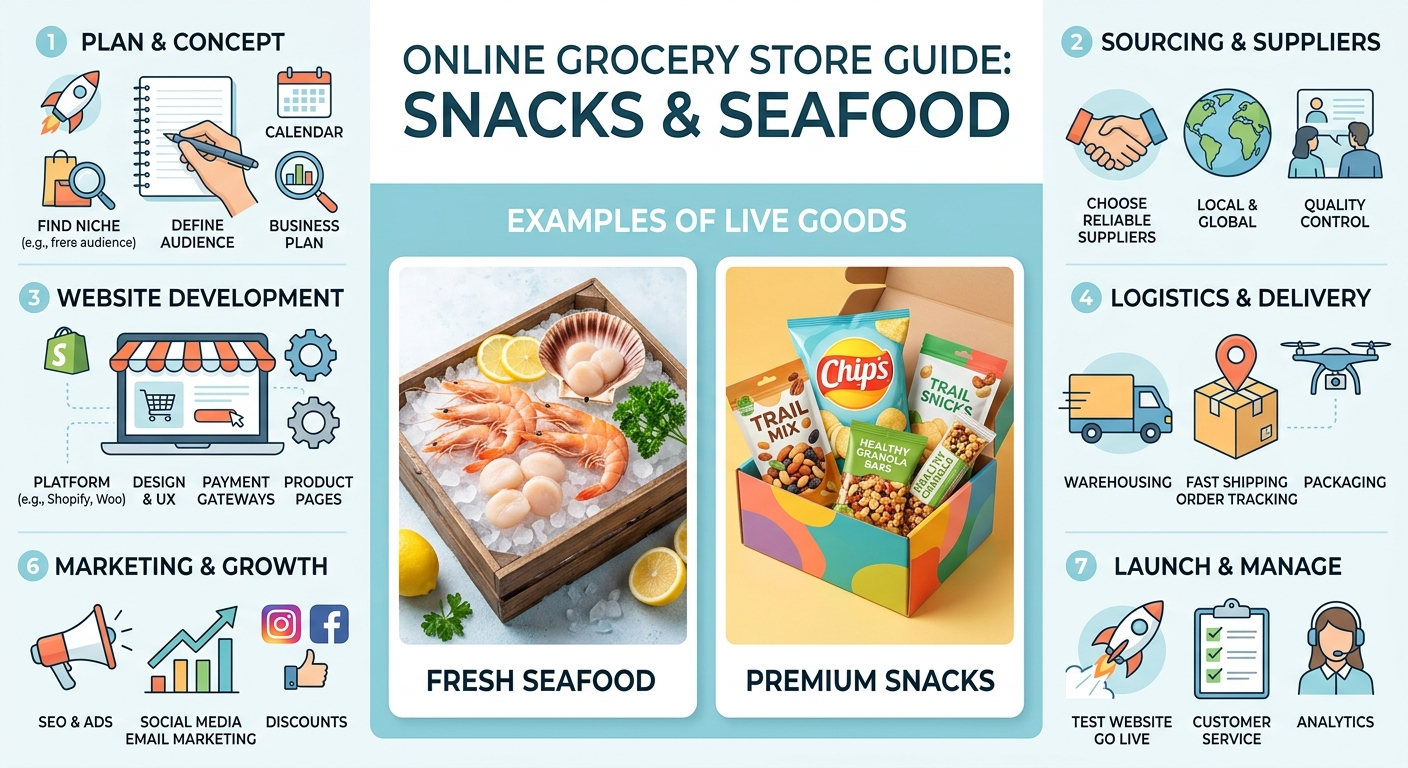
How to Create an Online Grocery Store: Full Guide to Snacks and Seafood
Want to sell snacks, nuts, dried fish or seafood online? We’ll walk you through it step by step: from weight-based variants and specifying dimensions to delivery with auto-created TTN and your first sales. No fluff, only practical steps.
📄 Table of contents
- Why open a grocery online store: profit and benefits
- Step-by-step plan for creating a grocery store
- Choosing a template and store design
- Catalog structure: categories, brands, collections
- Search filter — weight, packaging, flavor, brand
- Product variants: weight and packing as the “size”
- Adding products: manually or bulk import
- Automatic import and stock updates
- Product weight and dimensions — the basis of correct delivery
- Delivery methods and auto-creation of TTN
- Sales statistics and analytics
- What affects sales: SEO, PageSpeed, Schema.org, website usability
- Free promotion: blog, SEO, Google Ads
- Expanding your service: Telegram store and newsletters
- API and automation: full control
- Visual editor, templates and block library
- How to start for free
Why Open a Grocery Online Store: Profit and Benefits About business
Before moving to the technical part, let’s honestly look at what benefits an online grocery store brings and in which situations it makes sense. The answer depends on where you start and what you trade in — snacks or seafood.
Situation 1: You already have an offline grocery or snack store
You know your product first-hand, you have a warehouse and your own circle of customers. The website solves the main problem of such a business — warehouse management and geography. BooStore automatically synchronizes stock: what sold online — was written off from the warehouse, what was delivered — added. No double sales and manual recalculations. Connect your supplier’s price list via auto-import — and stock for each packing is updated by itself. Plus — 24/7 sales without salespeople.
Situation 2: Dropshipping or working with a supplier without a warehouse
A popular scenario for snacks and seafood. You find suppliers (local producers of chips and snacks, importers of frozen seafood), upload their price lists to your website, set up your markup — and sell. Warehouse, packaging, shipping — on the supplier. Your task is to attract customers and process orders. BooStore allows connecting up to 30 sources with different suppliers, setting your own markup and filtering rules for each one, and orders come straight to Telegram. No warehouse needed.
Situation 3: You want to launch a grocery store from scratch
You have an idea, but no product, no warehouse and no big budget. Start small: 50–100 items that you buy to order. This is ideal for testing a niche: snacks for beer, dried fish sets, premium seafood. A website on BooStore can be launched in one day for free, and once you understand which items sell best — scale up.
Why snacks and seafood specifically
🍟 Snacks
High purchase frequency and impulse demand: customers return regularly. Large assortment, convenient weight-based packing, high markup on portion packages.
🐟 Seafood
A premium segment with high margins: shrimp, squid, mussels are bought “for the table” and as gifts. The main nuances are weight-based packing and frozen logistics.
Technical part
Now let’s move to practice. Below are specific steps, settings and tools that will turn an idea into a working online grocery store.
Step-by-step plan: how to create a grocery store from scratch Step-by-step guide
Below is a proven 9-step scheme that will take you from registration to the first order. The plan is based on the official BooStore step-by-step guide and adapted to the specifics of a snack and seafood store. If you have already read the shoe store guide — the logic is the same, only the set of characteristics and packings changes.
Registration and template selection
Create a website on BooStore and choose a suitable template. For a grocery store, large “appetizing” product images and a convenient catalog are important. The template can be changed at any time — products and settings will be preserved.
Setting up catalog categories
Create the structure: Snacks, Nuts and seeds, Dried fruits, Meat snacks, Fish snacks, Seafood, Fish and caviar, Gift sets. Categories are loaded via quick import or manually.
Creating a search filter (required!)
Configure product types and characteristics: weight and packing, packaging type, flavor, brand, storage conditions. This is the basis of convenient navigation in a grocery store. More in the filter section.
Uploading products with weight-based variants
Add products manually (for 50–100 items) or via bulk import from Excel, CSV, Google Sheets or XML. Variants are supported — each packing (100 g, 250 g, 500 g, 1 kg) with a separate SKU, price and stock.
Setting up the main menu and mobile version
Create a convenient menu with categories. Configure the mobile app menu with icons, search and filter. Most grocery orders are made from a phone — the mobile version is critically important.
Delivery and payment: weight, dimensions, auto-TTN
Fill in product weight and dimensions, set up delivery: Nova Poshta, Ukrposhta, pickup, courier. Connect auto-creation of TTN. Add online payment: MonoPay, LiqPay, Stripe, WayForPay and others.
Notifications and statistics
Set up notifications about new orders in Telegram. Connect Google Analytics, counters and sales statistics. You will see which snacks and which packing sell best.
SEO setup and content
Fill in meta tags for categories and products, configure SEO-friendly URLs, Schema.org markup. Create a blog with useful articles: “How to choose shrimp”, “How meat and fish snacks differ” — this will attract free traffic from search.
Launch and promotion
Publish the website, connect a domain, submit products to Google Merchant Center, set up advertising. Launch a blog and social networks. Use free tools to attract the first customers.
Choosing a template and design: start fast, change painlessly Design
One of the main advantages of BooStore is that you can start with a ready-made template and change the design at any time without losing products, settings and SEO positions. This fundamentally distinguishes the platform from classic CMS, where changing a theme often breaks the layout.
How it works for a grocery store
Choose a template from the catalog — it sets the structure, block layout, typography. After installation you can:
- Change the color scheme — in the design editor you can change the colors of the menu, background, buttons, links
- Change the header and footer — configure the logo, contacts, menu
- Change the template completely — when switching, products, categories, delivery settings and SEO remain untouched
- Create your own design — via HTML/CSS blocks or through the visual editor
For a snack and seafood store, it is especially important that the template supports large photos of food (appetizing shots sell better than any text) and convenient display of variants as buttons or a dropdown list — the customer should choose a 100 g, 250 g or 1 kg packing in one click.
Visual block library
To create unique pages without programming, use the library of ready-made visual blocks. Dozens of styles for headings, split sections, benefits, contacts, social networks. You just choose a block, configure colors and content — the block is ready to be placed on the website.
Catalog structure: categories, brands, collections Organization
A proper catalog structure is the basis of SEO and user convenience. For a grocery store, it’s important to think through the hierarchy before adding products, so you don’t have to move thousands of items between categories later.
Example structure for a snack and seafood store
- Store (root category)
- Snacks
- Chips and croutons
- Nuts and seeds
- Dried fruits and healthy snacks
- Popcorn and beer snacks
- Meat snacks (jerky, dried meat, sausages)
- Fish snacks (smelt, vobla, taranka, dried fish)
- Seafood
- Shrimp
- Squid and mussels
- Octopus and premium delicacies
- Fish and caviar
- Gift sets and boxes
- Snacks
Categories can be imported in bulk via CSV/Excel or quick text import. SEO data is filled in for each category: Title, Description, SEO-friendly URL, H1 heading. Detailed instructions are in the BooStore knowledge base.
Brands and collections
On BooStore you can create manufacturers and importers (for example, brands of snacks, fish delicacies, frozen seafood) and collections (seasonal selections, “New arrivals”, “Sales hits”). This gives additional pages for SEO and convenient navigation for customers.
Search filter — weight, packaging, flavor, brand Critical
If a filter for an electronics store is convenient, for a grocery store it’s a must. A person cannot “inspect” a product in their hands online, so they rely on characteristics: packing weight, flavor, packaging type, storage conditions. Without a filter, the customer will leave the site in 30 seconds.
BooStore provides a built-in smart search filter that is configured without third-party services and additional fees.
Which characteristics you must add for groceries
ઈ Weight / packing
The most important characteristic. 50 g, 100 g, 250 g, 500 g, 1 kg. Convenient to combine with the price per kilogram.
📦 Packaging type
Bag, jar, vacuum, bulk, strip pack, doy-pack. Important for seafood and loose snacks.
🍲 Flavor
Cheese, paprika, barbecue, sour cream and onion, mushrooms. Critical for chips and snacks.
🛒 Brand / manufacturer
Grocery shoppers are often loyal to a specific snack brand or seafood importer.
🍴 Product type
Snack, nuts, dried fruits, meat snack, fish snack, seafood — helps narrow the choice.
❄️ Storage conditions
Dry, chilled, frozen. Very important for seafood — the customer immediately understands that the order can only be placed with cold-chain delivery.
How to configure the filter on BooStore
In the “Store” → “Product types and characteristics” section you create a new product type (for example, “Snacks”) and add characteristics with their values. Then in the product card you select the type and fill in the characteristics. After that, create a “Search with Filter by product types” block and place it on the left of the site.
The filter works with AJAX loading — products are filtered without reloading the page. Auto-substitution of the category path (autopath parameter) is supported — the search goes only within the current category. Instructions for configuring characteristics — in the knowledge base.
📄 Product comparison — a useful filter option
Based on the filter you can enable product comparison. The customer selects 2–3 items (for example, chips of different brands or shrimp of different packings) and sees their characteristics side by side: weight, price per 100 g, flavor, packaging. This greatly simplifies the choice and increases conversion. Just enable the “Comparison” checkbox in the filter block settings — and the “Add to compare” button will appear on product cards.
Product variants: weight and packing as the “size” Key
For shoes, the main variant is the size; for clothing — size and color. For groceries — weight and packing. The same product can be sold in four or five packings, and each packing is a separate variant with its own SKU, price, stock and weight for delivery.
What this looks like in practice
🥜 Fried salted peanuts
Variants: 100 g, 250 g, 500 g, 1 kg. Each packing has its own SKU, price and warehouse stock.
🦐 Boiled-frozen shrimp
Variants: 250 g, 500 g, 1 kg, 2 kg (box). For each — its own packaging photo, price and stock.
🐟 Dried fish
Variants by carcass size: 50 g, 100 g, 200 g. The customer chooses exactly the format they need for beer.
🍿 Popcorn
Variants: 90 g, 180 g, plus flavors — caramel, cheese, bacon. Weight and flavor are combined into variants.
Pricing rule by packing
The larger the packing, the lower the price per kilogram. This encourages the customer to take a larger package. A classic example: 100 g of peanuts — 30 UAH (300 UAH/kg), 250 g — 60 UAH (240 UAH/kg), 1 kg — 190 UAH (190 UAH/kg). To let the customer immediately see the benefit, add the “Price per 1 kg” characteristic — it is displayed in the card and filter.
How to set up variants on BooStore
- Create a product and enable the variants mode
- Add values: weight (100 g, 250 g, 500 g) and, if needed, other parameters (flavor, packaging type)
- For each variant specify its own SKU, price, stock and weight with packaging
- Fill in the product characteristics (weight, packing, flavor) for the search filter and feeds
Each variant can have its own image, description and even differ from the main card. The system supports displaying variants as buttons, a dropdown list or separate cards.
How to add products: manually or bulk import Filling
You have two ways to fill the catalog. The choice depends on the volume.
Manual adding — for 50–100 items
Suitable if you start with a small assortment or add exclusive items. In the admin panel you fill in: name, price, category, image, description, characteristics, variants (weight-based packings) and weight with dimensions. Convenient for precise control of each card. Instructions — in the knowledge base.
Bulk import — for 1,000+ products
When you have hundreds of items in several packings, manual adding becomes impossible. BooStore supports import from:
- Excel (CSV / XLS) — the most popular format. The structure can be downloaded by exporting products and used as a template
- Google Sheets — live connection by URL, changes are synchronized automatically
- XML / YML — the standard format of supplier price lists
- ZIP archives — if the supplier sent an archive with XML/CSV inside
images/photo1.jpg) — the archive is uploaded together with the data file, and products receive their images.
What can be imported in one upload
📦 Variants
Weight-based packings, flavors with unique SKUs, individual prices, stock and images.
📈 Prices and stock
Retail, old, wholesale and purchase price. Quantity with +/- increment. Price per 1 kg.
ઈ Weight and dimensions
Weight with packaging and dimensions — for delivery calculation and auto-creation of TTN.
📄 SEO data
Meta Title, Meta Description, SEO-friendly URL for each product.
🔍 Characteristics
Binding to the product type and filling characteristic values for the search filter.
📷 Images
Main + up to 16 additional. The system downloads them by URL itself and converts to WebP.
Automatic import and stock updates Automation
The most powerful feature for a grocery store with a dynamic assortment and short shelf life. You set up automatic scheduled updates — and the system itself updates prices, stock and adds new arrivals without your involvement.
How it works
Specify the data source
FTP, HTTP, Google Sheet or a file on the supplier’s server. You can specify a login/password for access.
Set up the schedule
Interval: from 4 hours to 30 days. Add up to 30 sources with different settings.
Mode: update or add
In the “Update only” mode the system changes prices and stock of existing products. In full mode it also adds new items by new SKUs.
Filters and markups
Filtering by categories, brands, suppliers. Math markups: +25%, *2, +500. Works automatically.
Get notifications
If necessary, receive a detailed report by Email or a Push notification in the browser. The admin panel has a summary with import responses for each source.
Filtering by parameters and suppliers
You can import products selectively: only snacks of a certain brand, only seafood with a price above a certain amount, only products of one supplier. Each source has its own filtering rules. This is especially convenient if you have several suppliers and each is responsible for its own category.
Product weight and dimensions — the basis of correct delivery Critical
In the grocery niche, weight and dimensions matter more than in any other: the delivery cost, the ability to auto-create TTN and, for seafood, frozen logistics depend on them. Without filled weight and size fields, you won’t be able to automatically calculate delivery and create a waybill.
Where weight and dimensions are filled in
In the product card on BooStore there are separate weight and size fields. If the product has variants — the weight is specified for each packing separately: a 100 g pack weighs 0.1 kg, and a 1 kg pack with packaging weighs 1.05 kg. Exactly with packaging, because these are the numbers the shipping company sees.
Why it’s needed
- Delivery cost calculation — Nova Poshta rates a parcel by weight and volume, the data is taken from the product card
- Auto-creation of TTN — weight and dimensions are automatically inserted into the waybill
- Delivery method restrictions by dimensions — for large thermal boxes with frozen goods you can configure separate rules
- Correct feeds — Google Merchant and marketplaces accept a product with a weight field (g:weight)
Example of filling in weight and dimensions
| Product / variant | Weight with packaging | Packaging dimensions |
|---|---|---|
| Fried peanuts, 100 g | 0.1 kg | 14×9×3 cm |
| Fried peanuts, 500 g | 0.52 kg | 22×15×7 cm |
| Fried peanuts, 1 kg | 1.05 kg | 25×18×8 cm |
| Shrimp, 500 g (frozen) | 0.55 kg | thermal box 20×13×7 cm |
| Shrimp, 2 kg (box) | 2.1 kg | thermal box 32×24×16 cm |
Delivery methods and auto-creation of TTN Logistics
Groceries are a niche with special logistics. Snacks travel well with regular delivery, while frozen seafood requires thermal boxes and attention to transport conditions. BooStore supports all popular delivery methods in Ukraine and other countries and can create TTNs automatically.
Which delivery methods can be configured
- Nova Poshta — to a branch, parcel locker or courier to an address, with API integration and up-to-date pickup points
- Ukrposhta — to a branch or by courier
- Pickup — from a store or warehouse. Especially convenient for frozen products
- Address delivery — courier within the city, often with cooling for seafood
- Pickup points / parcel lockers — loaded via the Nova Poshta API
- Custom delivery methods — any options: free delivery from an order amount, delivery by zones, surcharge for a thermal box, automatic recalculation of the order total including delivery
The delivery method is selected at checkout or when viewing the cart (in the second case, a dependency on country and region is available). For each method you can set a dependency on the order amount — for example, “Free Nova Poshta delivery from 1500 UAH” — and configure different conditions for different cities or regions. Experience shows: for groceries, free delivery from an amount is the main incentive to add more packings and raise the average check.
Features for snacks and seafood
Snacks — regular delivery by Nova Poshta or courier. The weight and dimensions of the packing directly affect the rate: light 100 g packets cost noticeably less to deliver than large 1 kg packages. Offer free delivery from a certain order amount — this encourages adding more items and grows the average check.
Seafood — frozen products are transported in thermal boxes, so increase the weight and dimensions in the card (see the section about weight). For fresh and chilled seafood, pickup and address courier delivery within the city with cooling are more often used. On BooStore you can configure different delivery methods with different conditions — for example, “Pickup” as recommended for frozen goods and “Nova Poshta” for snacks.
Auto-creation of TTN and connecting delivery service APIs
One of the most in-demand features for a grocery store is automatic creation of TTN (waybill) and delivery cost calculation right at checkout. BooStore connects via API to several services at once:
- Nova Poshta — hints for localities, branches and parcel lockers, auto-creation of TTN and automatic cost calculation. Delivery across Ukraine
- Ukrposhta — hints for region, city, branch and street (including by postal index), auto-creation of TTN and cost calculation
- Meest — hints for city and branch/parcel locker, auto-creation of TTN, delivery across Ukraine and abroad
- Goshippo — an international multi-carrier (DHL, UPS, FedEx, USPS, Royal Mail and others): the customer specifies the country and address, and the cost is calculated automatically according to the selected carrier’s rates
How this works in practice:
- The customer selects delivery and fills in the data — contacts, branch or address (with hints)
- The system automatically calculates the delivery cost by the carrier’s rates
- When the order status changes, a TTN is automatically created via API
- Weight and dimensions are taken from product cards and inserted into the waybill automatically
- The TTN number is recorded in the order, and the client receives a notification with the tracking number
To connect, just enter the API key in “Store” → “Delivery”, enable the “API” toggle in the delivery method and the “TTN creation” option, and then specify the sender via the “gear” icon. A complete example of configuring the Nova Poshta and Ukrposhta API — in the “Delivery” instructions in the BooStore knowledge base.
Perishable Delivery and Precise Logistics via API
For a grocery store the cost of a logistics mistake is higher than in any other niche: an incorrectly entered weight breaks the calculation, and an extra day in transit ruins freshness. BooStore connects carriers through their official APIs, where each service uses its own key, and handles waybill creation, printing and live tracking for you.
- Nova Poshta — across Ukraine, branch/parcel-locker autocomplete, waybill creation, cost calculation, printing;
- Ukrposhta — city/street/branch/postal-index autocomplete, waybill creation, cost calculation, printing;
- Meest — across Ukraine and abroad, branch/parcel-locker and street autocomplete, waybill creation, cost calculation, printing;
- GoShippo — international multi-carrier (DHL, UPS, FedEx, USPS, Royal Mail) for shipments abroad.
Connection Steps: First Keys, Then the Method
- In «Settings» → «Store» → «Delivery» enter the service key (each has its own: Nova Poshta from the carrier’s cabinet, Ukrposhta — bearer||counterparty, Meest — login/password, Goshippo — panel key).
- In «Delivery method choice (in the checkout form)» create a method and choose the connected API.
- In the «Create TTN» field set the payment mode (cash on delivery, delivery-only, goods-only, etc.).
- Via the gear icon specify the sender-counterparty (city, branch/warehouse, street — with autocomplete). There can be several senders.
Managing Waybills in the Seller Cabinet
Waybills can be created and deleted right on the site. For perishable logistics the manual mode from the cabinet when editing an order is preferable: this way you verify the order and set exact dimensions and weight of fresh goods before creating the waybill. When creating a waybill you choose the delivery method, payment method and cash-on-delivery/payment-control mode, and separately specify the amount to be returned and its destination — cash, to a card or to a bank account (IBAN).
Method Visibility Conditions: Weight, Volume, Countries, Surcharge
So that a delivery method appears only where appropriate, it supports: ranges of order amount, volume (m³) and weight (for example, only for freight branches), a country filter, and an always-added own delivery cost — for instance, for cold packaging or COD handling. Free delivery from an order amount is available.
Address Fields and Autocomplete
For each method you configure which address fields the customer sees: one line, or separately — country/region/city/street/house/apartment/index, or branch/parcel-locker fields. Autocomplete depends on the field set: enable «region + city + branch» and, in any connected API, those values are suggested while typing. Street is also supported when the street field is shown. Different languages can have different delivery methods and their own cart descriptions.
Waybill Printing and Manager Rights
Waybill printing is available for all services (Nova Poshta, Meest, Ukrposhta, international via GoShippo) by TTN number from an order or from the creation window. If more than one owner manages the site — add a manager and enable the right to create waybills in the delivery settings, otherwise they will not be able to issue waybills.
Online payment: accepting payments on the site Finance
A modern grocery online store should offer the customer a convenient choice of payment methods. BooStore supports both payment on delivery (cash on delivery) and full online payment by bank card, Apple Pay, Google Pay and other methods. All payments are processed on the payment systems’ side (PCI DSS) — the platform does not store customer card data, which is completely safe.
Which payment systems can be connected
Supported: MonoPay / Monobank, LiqPay, PrivatBank, Hutko, WayForPay, Fondy, iPay, Stripe, Square, PayPal and others. The customer chooses the payment method in the checkout form. Connecting payment systems is available for sites with an attached domain and takes a few clicks in the admin panel. A detailed description of all services, fees and capabilities is on the BooStore “Payment systems” page.
Fees and your own markup
The BooStore platform does not charge a commission for using payment systems — the percentages are set by the services themselves and are deducted from the customer’s payment. Approximately: Monobank and LiqPay — from 1.3%, PrivatBank — 1.3%, Hutko — from 1.1–1.5%, WayForPay — 2%, Fondy — 2–2.4%, Stripe — 2.9% + $0.30, PayPal — 2.99% + $0.49. If needed, you can add your own markup to each method — the “Add percentage to payment” field, for example “+2%”.
Advanced payment options
🔑 Hold / two-stage payment
Funds are “frozen” on the customer’s card and charged after the order is checked. Available in LiqPay, Monobank, PrivatBank, Fondy, Hutko, WayForPay, Stripe, PayPal. Convenient for large snack and seafood orders.
💵 Pay in installments
LiqPay (split), PrivatBank (PayParts), WayForPay (payParts), Fondy and Hutko (installments), Stripe (Klarna, Afterpay, Affirm), PayPal (Pay Later). The customer pays in installments — you receive the full amount immediately.
⏱ Recurring payments
Scheduled subscription (day/week/month/year) in LiqPay, Monobank, Fondy, Hutko, WayForPay, Stripe, PayPal. Convenient for “subscription” delivery of snacks and healthy bites to regular customers.
📈 ПРРО / fiscalization
Transferring the order composition to ПРРО is supported in LiqPay, PrivatBank, WayForPay, Monobank, Hutko, iPay. Legal details — in the article “How to open an online store in Ukraine”.
Deferred payment and invoices by link
- Payment after order verification — you can prohibit online payment until manual verification: the payment button will appear in the order status or be sent to the customer’s e-mail
- Changing the payment method after checkout — open the order in “Sales statistics”, select the required payment system — the customer automatically receives a payment link
- Invoice without a product — generated by the
payment.htmllink specifying the currency, amount, description and payment system. Convenient for sales in messengers and by phone - Money refund — performed from “Sales statistics” via the refund button; refund data comes to e-mail and is reflected in the payment status
Online payment is configured in the admin panel in a few clicks. Step-by-step instructions for connecting payment systems — “Online payment” in the BooStore knowledge base.
Sales statistics: what sells and what should be reconsidered Analytics
Without analytics, you manage the store blindly. BooStore provides built-in sales statistics that help you make decisions based on data rather than intuition.
What data you see
📊 Sales by products and variants
Which snacks and products sell best, which packing is the most popular, which brands bring the main revenue.
📈 Dynamics by day/week/month
When there were sales peaks, which promotions worked, how seasonality affects demand for seafood and snacks.
💲 Average check
How much the customer spends on average per order. If the check is low — offer sets, boxes and related products (sauces, drinks).
📌 Conversion
How many site visitors become customers. If conversion is low — the problem may be in prices, descriptions or site speed.
All data is exported to CSV for detailed analysis in Excel. Google Analytics 4 connects “out of the box” — just paste your tracking ID.
What affects sales: SEO, PageSpeed, Schema.org, usability Growth
It’s not enough to open a store — people need to find it and the purchase needs to be convenient. Here are 5 factors that directly affect a grocery store’s sales, and how BooStore helps with each.
1. PageSpeed — loading speed
Google says directly: loading speed is a ranking factor. If the site loads longer than 3 seconds, 53% of visitors leave. BooStore consistently delivers a PageSpeed score of 99–100 thanks to:
- Multi-level caching
- Automatic conversion of images to WebP
- Gzip compression of HTML/CSS/JS
- Clean Vanilla JS without heavyweight libraries
- CDN-ready architecture
2. Schema.org micro-markup
Structured data helps Google better understand page content. BooStore automatically generates JSON-LD markup for:
- Products (price, availability, brand, weight)
- Categories (breadcrumbs)
- Blog articles (author, publication date)
- Reviews (rating)
This increases CTR in search results due to rich snippets — customers see the price and availability right in Google search.
3. SEO settings: SEO-friendly URLs, meta tags, XML Sitemap
On BooStore you have full control over SEO:
- SEO-friendly URLs for each product, category and article
- Meta Title and Description — individually or via shortcodes for auto-generation
- Automatic generation of sitemap.xml
- robots.txt configuration
- 301 redirects (important when changing URLs or importing products)
- Open Graph for social networks
Complete SEO guide: SEO recommendations for websites.
4. A convenient and fast website
A grocery store must be convenient on mobile devices (most orders are from a phone). BooStore provides:
- Mobile app menu — with icons, search, filter, cart
- Responsive templates — block-based layout without tables
- Product comparison — the customer can compare packings by weight and price per 1 kg
- Product widgets — display new arrivals, sales hits, promotions on any pages
- Quick search — by name, SKU, brand
5. Feeds to marketplaces and advertising systems
BooStore supports feed generation for:
- Google Merchant Center — for Google Shopping and Performance Max
- Rozetka, Prom, Hotline, Epicenter — for marketplaces
- Facebook / Instagram — for dynamic advertising
Feeds are updated automatically when prices and stock change. The export is configured with filtering by categories, brands, price and availability status. Google Ads guide.
Free promotion: blog, SEO, content marketing Free traffic
Not everyone has a budget for expensive advertising. But there are free tools that work for years. BooStore provides all the necessary tools “out of the box”.
Why a blog is a free sales department
An article written once can bring customers for 2–3 years without additional investment. People search Google not only for products, but also for answers to questions. A quality SEO article attracts targeted traffic that converts into purchases with a 3–8% conversion rate (vs 1–3% for advertising).
Blog topics for a snack and seafood store
- 📝 “How to choose shrimp: breaking down the packaging, weight and storage conditions”
- 📝 “How meat and fish snacks differ: an assortment guide”
- 📝 “Top beer snacks: what you must add to the cart”
- 📝 “How many grams in a portion: a guide to packings and prices per kilogram”
- 📝 “How to store frozen seafood properly”
- 📝 “Gift sets of snacks and seafood: gift ideas”
More about content marketing: Why an online store needs its own blog.
Blog tools on BooStore
- Built-in article catalog — with categories, teasers, individual pages
- SEO for each article — SEO-friendly URL, Meta Title/Description, Schema.org Article
- Scheduled publication — publishing articles on a schedule
- Article import — upload 50 articles from Excel/Google Sheets in 5 minutes
- Internal links — place links to products and categories right in the article text
Promo newsletters: e-mail and Telegram
The grocery niche lives on repeat purchases, so working with the customer base is critical. BooStore allows you to collect an e-mail base right on the site and send customers emails about new arrivals, promotions, seasonal offers and abandoned cart reminders. You can also work through Telegram: notify bot subscribers about promotions and sales and automate sales. These two channels are the cheapest and most reliable way to bring customers back without an advertising budget.
Google Ads and paid advertising
When you want to scale up — connect paid advertising. BooStore supports:
- Google Shopping — product ads with photo and price
- Google Performance Max — smart campaigns across all Google platforms
- Facebook / Instagram — dynamic catalog ads
All exports are configured in the admin panel in a couple of clicks. Complete guide to launching Google ads.
Expanding your service: automated store in Telegram For growth
Want to sell not only through the site, but also in the messenger where your audience is? BooStore lets you turn a Telegram bot into a full-fledged catalog and accept orders right in the chat, as well as automate order notifications and subscriber newsletters.
How it works
📲 Store catalog in Telegram
Display categories and products with photos and prices right in the bot: category navigation, product cards, search, paginated output and orders with packing selection. The customer places an order without leaving the messenger.
💳 Order notifications
A new order instantly comes to managers in Telegram: composition (packings, weight, flavors), total, delivery and payment method, customer data. The status changes in one click right from the chat.
📧 Subscriber newsletters
Send bot subscribers promotions, new arrivals and reminders. Combined with e-mail newsletters, these are two channels for bringing customers back without advertising costs.
⚡ Sales automation
The bot works as an addition to the site: collects leads, reminds about abandoned carts, transfers orders to CRM and the admin panel, speeds up the response to each order.
API and full automation — for those who scale up For pros
When a store grows to tens of thousands of orders, manual management becomes a bottleneck. BooStore provides the Commerce REST API v2.0 for full integration with external systems.
What can be done via API
📦 Product management
Creating, updating, deleting products. Managing prices, stock, packing-based variants.
💳 Orders
Receiving orders, changing statuses, syncing with CRM, 1C and accounting systems.
📄 Categories and brands
Full management of the catalog tree, collections and manufacturers.
📈 Articles
Managing blog content, article categories, scheduled publications.
🔒 Webhooks
Automatic sending of event data (new order, payment, status change) to your system.
📊 Data export
Exporting products, orders, customers to JSON, CSV, XML for analytics.
Full documentation: BooStore API integration.
Visual editor, templates and block library Creative
BooStore is not just a CMS, but a full-fledged design system. You can change the store’s appearance without programming skills.
What is available for changing the design
- Template catalog — ready-made solutions for different niches. Choose and install in one click
- Design editor — change colors, fonts, background, menu style without code
- Visual block library — hundreds of ready-made multicolored blocks: headings, split sections, benefits, icons, social networks, contacts. Just insert and configure colors
- Custom HTML/CSS/JS — full access to the code for professional customization
- Custom blocks/menus — create a block with any content and place it on the needed pages
Important: when changing the template or style, all products, categories, settings and SEO data are preserved. You can experiment with the design without fear of losing anything.
How to start for free right now Free
One of the main advantages of BooStore is that you can start without investment. The free plan is unlimited and includes:
📦 Up to 1000 products
This is enough to start a snack and seafood store. When the assortment grows — move to Pro from $3/month.
⚡ PageSpeed 99-100
Maximum loading speed on all plans, including the free one.
🔍 Search filter
A full-featured filter by characteristics — free and unlimited.
📄 All SEO tools
SEO-friendly URLs, meta tags, Schema.org, sitemap.xml, 301 redirects — everything is available on the free plan.
📲 Product import
Manual import from CSV, XLS, XML is available for free.
📖 Blog
Built-in article catalog with scheduled publication — free.
For connecting payment systems, enabling ad exports and increasing limits — hosting from $3/month. But you can start, test the niche and get the first sales absolutely free.
Checklist: what to do in the first week
- ✅ Register on BooStore and choose a template
- ✅ Create catalog categories (Snacks, Nuts, Seafood...) and set up the structure
- ✅ Create a product type and characteristics (weight, packing, flavor, storage conditions)
- ✅ Set up weight-based variants for several products (100 g, 250 g, 500 g, 1 kg)
- ✅ Fill in product weight and dimensions (with packaging)
- ✅ Set up delivery methods (Nova Poshta + pickup) and auto-creation of TTN
- ✅ Connect a Telegram bot for order notifications
- ✅ Write initial SEO tags for categories
- ✅ Write the first blog article (for example, “How to choose shrimp”)
- ✅ Connect Google Analytics
Additional bonus — BooStore marketing features
BooStore is not just a store builder. Built-in marketing tools help increase the average check, bring customers back and automate sales. Here’s what’s already available “out of the box”:
Cashback and discounts on repeat orders
Encourage customers to come back: configure cashback with points, personal discounts for regular customers and “second jar with discount” promotions.
Email marketing — collecting a customer base
Collect e-mail subscribers right on the site. Send new arrivals, personal offers, abandoned cart reminders and congratulations.
Abandoned cart — bringing purchases back
BooStore automatically sends a reminder and offers a discount to complete the purchase if the customer didn’t place the order.
Creating promotions with price changes
Launch discounts on items, sales, “2+1”. After the promotion ends, prices return automatically.
Telegram newsletters to subscribers
Notify customers about promotions and new arrivals right in the bot chat when they subscribe in your Telegram store.
Campaign analytics in statistics
Average check, conversion, repeat purchases and sales by packings — see the effect of every marketing move in numbers.
Repeat order in a few clicks
The customer follows a link from a previous order and repeats the purchase in a couple of clicks — all previously purchased products are automatically saved in the new cart.
💡 All marketing tools already work on the platform — you just need to enable and configure them for your grocery store.
📖 More in the Knowledge Base →🛠 Useful links
All materials for launching and developing a snack and seafood store on BooStore
❓ Frequently asked questions FAQ
How much does it cost to open an online grocery store on BooStore?
You can start for free — the Free plan is unlimited and includes up to 1000 products, a search filter, a blog, SEO tools and PageSpeed 99–100. For connecting payment systems, enabling ad exports and increasing limits — hosting from $3/month.
How do I set different weights (packings) for one product?
Enable variants in the product card and add weight values: 100 g, 250 g, 500 g, 1 kg. For each packing specify its own SKU, price, stock, weight with packaging and image. You can also add the “Price per 1 kg” characteristic for a clear comparison — the larger the packing, the lower the price per kilogram.
Why specify the product weight and dimensions?
Weight and dimensions are used in the delivery cost calculation and auto-creation of TTN, and are also passed to Google Merchant feeds (g:weight). They are filled in the “Delivery” → “Dimensions and weight” tab in the product card or via bulk import. For each variant the weight is specified separately and always including the packaging.
Can I upload thousands of products at once?
Yes. Import from Excel, CSV, Google Sheets, XML, YML, ZIP archives is supported. You can import variants (weight-based packings), SEO data, images, weight and dimensions. Scheduled automatic import from FTP/HTTP/Google Sheets is also available.
How do I sell frozen seafood online?
Configure several delivery methods: pickup for frozen products and Nova Poshta/courier for snacks. In the product card specify the weight and increased dimensions taking into account the thermal box and refrigerant, add the “Storage conditions” characteristic — the customer will immediately see that the product requires cold-chain delivery.
How do I enable auto-creation of TTN and delivery cost calculation?
Configure any delivery method with a connected API (Nova Poshta, Ukrposhta, Meest or international via GoShippo): enable the “API” toggle and the “TTN creation” option, specify the sender. When the order status changes, the system automatically creates a TTN, inserting the weight and dimensions from the product cards, calculates the cost by the carrier’s rates, and the client receives a notification with the tracking number.
Which delivery services can be connected via API?
Nova Poshta, Ukrposhta and Meest — with branch/parcel locker hints, auto-creation of TTN and cost calculation (Meest delivers across Ukraine and abroad). For international shipments — Goshippo: a multi-carrier with DHL, UPS, FedEx, USPS, Royal Mail and others, the cost is calculated automatically by the carrier’s rates.
Can I tie delivery to the order amount or region?
Yes. The delivery method is selected at checkout or when viewing the cart (in the second case, a dependency on country and region is available). For each method a dependency on the order amount is set — for example, “Free delivery from 1500 UAH” — and its own conditions for different cities.
Which payment systems does BooStore support?
MonoPay/Monobank, LiqPay, PrivatBank, NovaPay, Hutko, WayForPay, Fondy, iPay, Stripe, Square, PayPal and others. The customer chooses the payment method in the checkout form. Connecting is available for sites with an attached domain and is configured in the admin panel in a few clicks.
How much do payment systems charge? Can I add my own commission?
The platform does not charge a commission — the percentages are set by the services themselves: Monobank and LiqPay from 1.3%, PrivatBank 1.3%, Hutko from 1.1–1.5%, WayForPay 2%, Fondy 2–2.4%, Stripe 2.9% + $0.30, PayPal 2.99% + $0.49. If needed, you can add your own markup to a method — the “Add percentage to payment” field, for example “+2%”.
What is a hold / two-stage payment?
Funds are “frozen” on the customer’s card without immediate charging. After the order is verified you finalize the capture or cancel the hold. Supported in LiqPay, Monobank, PrivatBank, Fondy, Hutko, WayForPay, Stripe, PayPal — convenient for large and expensive orders.
Can I accept payment in installments?
Yes. Paying in installments is supported in LiqPay (split), PrivatBank (PayParts), WayForPay (payParts), Fondy and Hutko (installments), Stripe (Klarna, Afterpay, Affirm), PayPal (Pay Later). The customer pays in installments, and you receive the full amount from the payment system.
How do I set up deferred payment — for example, only after order verification?
Enable “Payment via payment systems only after order verification” in the store settings — the payment button will appear in the order status or be sent to the customer’s e-mail. You can also change the payment method after checkout: open the order in “Sales statistics”, select the payment system — the customer will receive a payment link.
How do I issue an invoice without a product?
Generate a payment.html link — it specifies the currency, amount, description, payer data and payment system. Such a link is convenient to send to customers in messengers, by phone or via a contact collection pop-up on the site.
Is fiscalization (ПРРО) supported with online payment?
Yes. Transferring the order composition to ПРРО is supported by LiqPay, PrivatBank, WayForPay, Monobank, Hutko, iPay. For other systems fiscalization is configured separately. Legal details — in the article “How to open an online store in Ukraine”.
How do I refund money to a customer?
The refund is performed from “Sales statistics” via the payment refund button. Refund data comes to e-mail and is reflected in the order status. The refund period depends on the payment system (usually about a week).
How do I create an automated store in Telegram?
Deploy the store catalog right in the Telegram bot: categories, product cards with photos and prices, search, paginated output and orders with packing selection, as well as subscriber newsletters. Details — in the articles “How to create an online store in Telegram” and “Sales automation and subscribers in Telegram”.
Can I send promotions to customers by e-mail and in Telegram?
Yes. Collect an e-mail base right on the site and send emails about new arrivals, promotions and seasonal offers, automatic abandoned cart reminders. Telegram bot subscribers can be notified about promotions and sales in the chat. Both channels bring customers back without an advertising budget.
What sales statistics and analytics are available?
Built-in sales statistics: sales by products and variants (packings), dynamics by day/week/month, average check, conversion, CSV export. Google Analytics 4 with e-commerce events, counters and payment statuses for each order.
How do I launch paid advertising: Google Shopping, Performance Max?
Upload the catalog to Google Merchant Center (Google Shopping), launch Performance Max, connect Facebook/Instagram for dynamic advertising. Feeds are configured in the admin panel with filters by categories, brands and price and are updated automatically when prices and stock change.