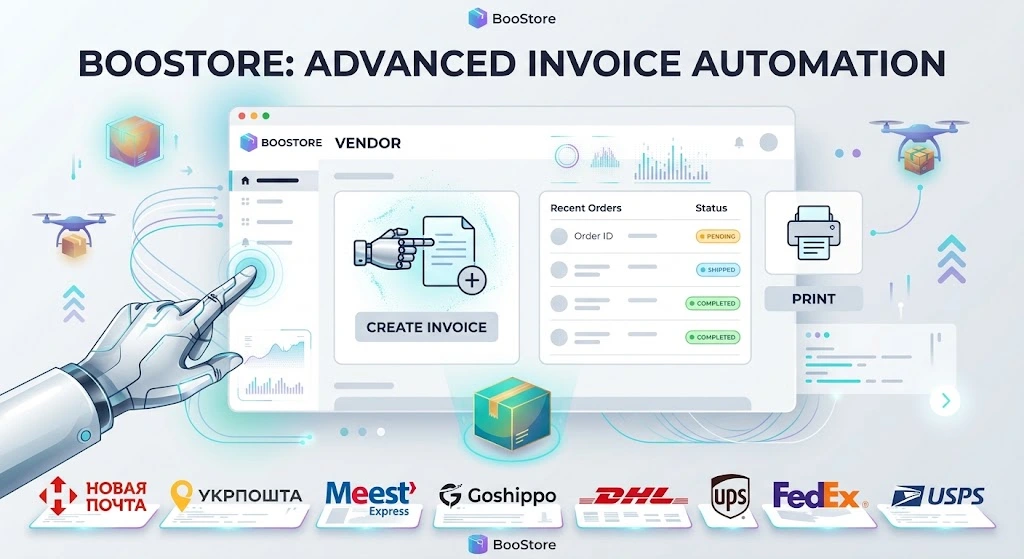
Creating a TTN in the seller dashboard and printing waybills
BooStore automates all waybill work: a TTN is created automatically at checkout or manually — right from the seller dashboard with full control over delivery and payment parameters. And if an order has a TTN number, the carrier's waybill can be printed in one click right on the site. Everything is built into the platform — no third-party services.
📄 Table of contents
What a TTN is in BooStore and when it is created
A TTN (waybill) is the carrier's document under which a parcel travels to the buyer. In BooStore, work with TTNs is fully automated, and a waybill can appear in two ways:
⚡ Automatically at checkout
A TTN creation mode is enabled in the delivery method — the system itself creates the waybill when the order is placed, passes the tracking number to the buyer and calculates the cost by the carrier's tariffs.
🖱️ Manually from the seller dashboard
When editing an order in the Sales Statistics you create a TTN yourself with full control over all parameters — this is the recommended way.
Creating a TTN from the seller dashboard: full control
Open the order in the Sales Statistics, click edit — and create a new TTN, fully specifying all parameters:
- Delivery parameters: delivery service, delivery type (branch, parcel locker, address, courier), city and recipient's address;
- Payment method and who pays: the seller pays for delivery, the buyer pays on receipt, or cash on delivery — the carrier collects money for the product and delivery;
- Product dimensions and weight: used to accurately calculate the cost by the carrier's tariffs (taken from product cards);
- Sender (counterparty): common or separate for a specific branch — set in advance in the delivery method settings;
- Recipient: details are substituted from the order — name, phone, branch or address.
TTN creation modes
Each delivery method has its own TTN creation mode:
| Mode | Description |
|---|---|
| Off | No automatic TTN creation — create one manually from the dashboard when needed. |
| Cash on delivery | The carrier itself collects money (for the product and delivery) from the recipient at handover. The delivery cost is not added to the order total. |
| Recipient pays only for delivery | A TTN is created, the cost is shown to the buyer but not added to the order total — the client pays for delivery on receipt. |
| Recipient pays only for the product | A TTN is created, you (the seller) pay for delivery. The buyer pays only for the product on receipt. |
| No recipient payment | The buyer pays for delivery right away together with the order. The cost is added to the total, a TTN is created. |
Even if auto-creation is off — a TTN can always be created manually from the seller dashboard when editing an order.
🖨️ Waybill printing right on the site
If an order has a TTN number, fast printing of waybills issued by delivery services is available — right on the site, without logging into the carrier's account. The form opens in a couple of clicks and is ready to print.
Printing works via the delivery services' API services connected on your site. The connection itself takes a few clicks: you paste the API key from your carrier account — the platform does the rest.
👣 How to print a waybill for an order
- Connect the delivery service API: «Store» → «Delivery» → paste the API key (a few clicks).
- Open the order in the Sales Statistics.
- Create the TTN: specify delivery parameters, payment method, who pays, product dimensions.
- Click print waybill — the carrier's form opens for printing.
Delivery statuses and notifications
After the TTN is created, the delivery status is tracked automatically:
- Scheduled auto-update — the status updates itself (on a timer) for all orders with a TTN;
- Bulk check — the "update delivery status" button in the order list updates statuses for all orders at once;
- Single order check — manually in the sales statistics;
- Notifications: the buyer receives an email about the new status, and the seller — Telegram, Viber, Push, e-mail or private message (channels are configured separately).
More about delivery services, flexible order form configuration and notifications — on the "Delivery services" page and in the "Full BooStore functionality" article.
Built into BooStore
Creating a TTN from the dashboard and printing waybills are already built into the platform: no separate service, third-party integrations or manual data entry needed. You just:
- Connect a delivery service by API key (a few clicks).
- Set the TTN creation mode in the delivery method.
- Create waybills from the dashboard and print them in one click.
❓ FAQ about TTN creation and waybill printing
Answers to popular questions about TTNs from the seller dashboard and waybill printing on BooStore.
Can I create a TTN from the seller dashboard?
Yes. When editing an order in the Sales Statistics you can create a new TTN, fully specifying delivery parameters, payment method and who pays (seller / buyer / cash on delivery), as well as product dimensions and sender/recipient details.
When is a TTN created — right at checkout or after confirmation?
Both options are available. According to the delivery method mode, the TTN is created automatically right at checkout, or you create it manually from the dashboard after confirming the order — whichever suits your workflow.
Is there waybill printing for a created TTN?
Yes. If an order has a TTN number, fast printing of delivery service waybills is available right on the site. Printing works via the carriers' APIs — they connect in a few clicks.
Why is creating from the dashboard the recommended way?
Some delivery services prohibit editing TTN data for certain payment methods (for example, cash on delivery). It is better to create the waybill with correct parameters right away from the seller dashboard — this excludes problems with the carrier.
Which delivery services are supported?
Nova Poshta, Ukrposhta, Meest (Meest Express) and the international multi-carrier Goshippo (DHL, UPS, FedEx, USPS and others). All support API address suggestions, automatic TTN creation, cost calculation and waybill printing.
Who can create TTNs?
The main administrator has full access. Managers receive flexible limited rights — for example, working with orders and creating TTNs without access to platform settings.
Does the delivery status update after the TTN is created?
Yes, automatically on a schedule (timer) for all orders with a TTN. Additionally there is bulk checking via a button in the order list and single order checks. The buyer receives an email about the new status, and the seller gets notifications via configured channels.
Do I need a separate service for waybill printing?
No. Printing is built into the platform and works via the delivery services' APIs connected on the site. No third-party programs or manual data entry — the carrier's form opens right on the site.