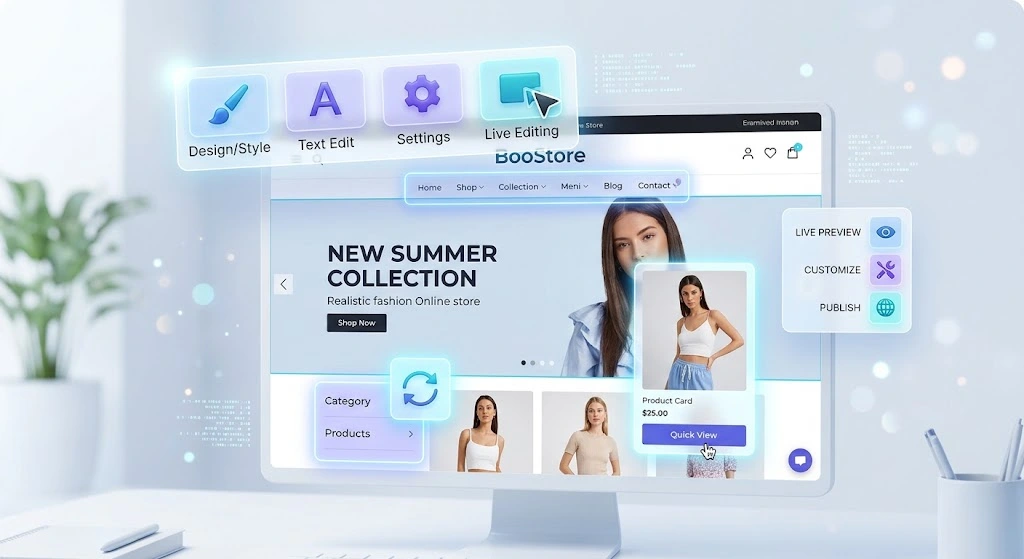
Create and change online store design in real time
Imagine opening your store like a customer and editing text right on the page — without hunting for the right section in the admin panel. Spotted a typo in a heading, an outdated price or an awkward phrase — hover, click and fix it. That is exactly what the BooStore visual editor is for.
BooStore visual editor lets you create and change online store design directly on the live page. You see the site as a customer sees it and edit exactly what you need: headings, texts, HTML blocks, menus, categories, producers, collections and buttons. No coding, no template files, no searching for the right block in long admin lists.
It is a fast visual builder with live preview, template customization and high loading speed. For fine settings, the full editor of every section is always available.
📄 Contents
🖱️ What the BooStore visual editor is
The visual editor is a mode where the site opens as a regular page and editable areas are highlighted. Click “Visual editor” and change content and styling without going to the admin panel. Changes are sent to the server with “Save” and stored in the same data as the full editor.
- Live preview: the result is visible immediately.
- No code: text, HTML and ready-made blocks are edited visually.
- Secure: access is checked against user and site owner rights.
- Clear errors: limits and missing access are reported.
🚶 What it looks like in practice
Open any store page and hover over a heading or paragraph — an edit icon appears. Click it, fix the text in place and save. You can do the same with a category button text, article title or ready block content. There is no need to find the page in the admin panel or open long forms.
- Open a page or article on the site.
- Hover over the text or block you need.
- Click the edit icon and make the change.
- Click “Save” — the changes appear on the site immediately.
🧩 What can be edited
- Pages: heading and HTML content.
- Articles: heading and text.
- Blocks and menus: heading, HTML content and ready blocks.
- Store categories: heading, text and button text.
- Producers and collections: heading, text and button text.
- Blog catalog categories: heading, text and button text.
Category buttons are links, so only the text is edited: the link tag is generated automatically and is not editable. Buttons open a convenient text area where HTML is allowed and link tags are removed automatically.
🧱 Ready-made visual blocks
The “Visual Blocks” tab is a library of ready sections: benefits, pricing, reviews, galleries, contacts, calls to action and more. Drag a block onto the page as a whole, then edit its text, buttons and images like regular elements. You do not need to build a section from scratch — choose a suitable ready block and adapt it to your store. The panel also lets you switch the color scheme and block language.
Examples and the ready visual blocks catalog: templates_visual_blocks.html.
🧑💻 HTML and creating elements
The “HTML” tab contains basic elements: DIV, SECTION, H1–H4, P, lists, table, image and others. Drag an element onto the page or insert your own HTML with the </> button on a block. In HTML you can use classes, styles, attributes and BooStore shortcodes — cart, search, menu and ready widgets; service shortcodes move only as a whole.
For complex markup, SEO meta and extra fields, open the full section editor. The visual and full editors work with the same data, so changes are not lost.
🚀 How to start
- Open the required page as an administrator or site owner.
- Click “Visual editor” in the panel.
- Hover a heading, text, block or button — the edit icon appears.
- Make changes and click “Save”.
⚡ Quick access through pop-ups
The admin panel has a “Add the markup for quick access” mode. Enable it and quick edit buttons appear on page elements. Click the element you need and a pop-up opens with fields for text, link, image or other settings. It is handy for spot edits without opening the full editor.
When quick access is no longer needed, click “Hide the quick access markup”. You can turn the mode on and off at any time.
🛠️ When the full editor is needed
Each site section can be edited separately from the admin panel: pages, articles, blocks and menus, shop categories, producers, collections and article catalog categories. The full editor provides SEO meta, access rights, languages, page visibility, menu positions and extra fields.
The visual editor is a fast tool for content and design. When advanced settings are needed, open the full editor for the required section in the admin panel. The visual and full editors work with the same data, so changes are not lost.
More: full design customization and BooStore full functionality.
⚡ Speed and mobile
The editor does not add heavy dependencies to the site and does not affect customer loading speed. The panel is adapted to small screens: windows, text areas and buttons remain convenient on tablets and phones.
❓ FAQ
Do I need to know code to change the design?
No. Main changes are visual: text, headings, ready blocks, buttons. HTML is available when needed but not required.
Can I change design directly on the site?
Yes. The editor opens on the live page and changes are visible immediately. After saving, the page reloads with updated data.
What happens if the block limit is exceeded?
The editor shows a limit message and does not create a new block. To increase the limit, pay for hosting.
Can I open the full section editor?
Yes. Pages, articles, blocks/menus, categories, producers and collections have a full editor with advanced SEO, access, language, positions and extra fields.
Are category buttons editable?
Yes, but only the button text. The link itself is generated automatically. HTML is allowed in the text, link tags are removed.