Online payment
You can add a payment method - online payment. Which will allow you to pay using one of the payment methods directly on the site.
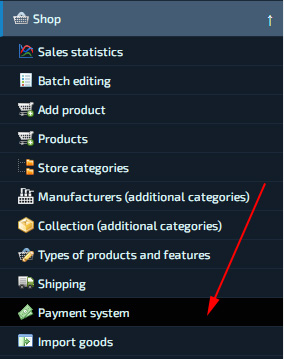
To create a payment method, go to the "Shop" - "Payment systems" - "Add payment method" section.
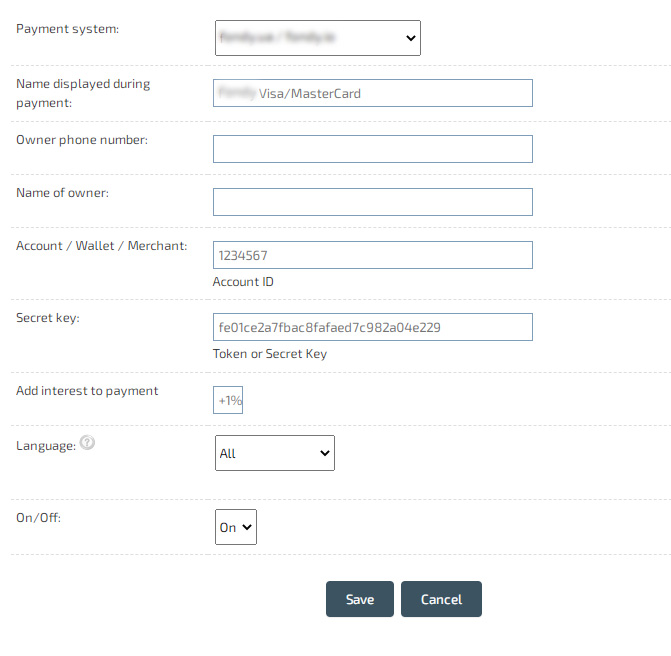
Choose one of the available payment methods and fill in the required data to connect.
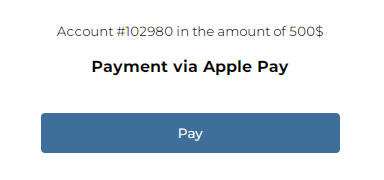
Payment methods will be displayed after checkout. If there are several payment methods, then the buyer himself will be able to choose the appropriate one. In addition, you can enable the choice of payment method at checkout (until the checkout is completed), and also limit payment until the order is verified.
How do I add a payment option at checkout?
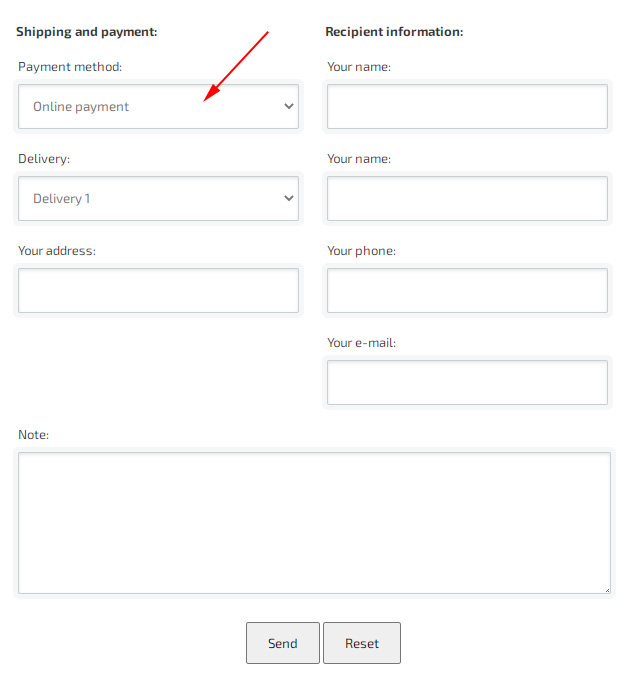
To add payment methods to the checkout form, go to the "Settings" section, "Shop" tab - "Currency and payment". In the paragraph "Select a payment method (in the order form)" - add payment methods. This block is primarily informational, but if you already have a connected payment method, then it will be available for selection in the "Payment Method" field. In the settings of the block with the payment method, you can specify the "Name of the payment method", as well as an Additional description for it, if necessary.
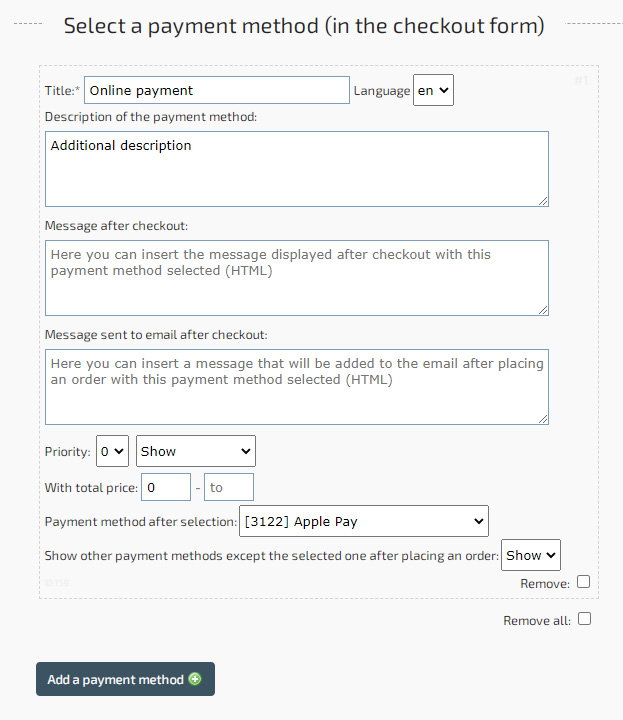
How to enable payment only after order verification?
You can change the payment options, for example, enable payment only after order verification. To do this, go to "Settings" in the tab "Store" - "Currency and payment". In the "Methods of payment" item, change the parameter - "Enable payment by payment systems only after order verification". In addition, you can enable payment only after clicking on a specific link, in the paragraph "Enable payment by payment systems only after clicking on a link with a payment method".Available payment systems
On BooStore you can connect many payment systems. The buyer chooses the payment method at checkout. Below is a brief overview of the available methods: fee, recurring payments, hold, installments and PRRO support.
(0% when paying with NovaPay card)
...and others. The list is not exhaustive — the range of available payment methods is constantly expanding.
PRRO, refunds and holds
PRRO (software cash register) — a software cash register for fiscalization of online payments: the order composition is sent for tax reporting. Supported in: LiqPay, PrivatBank, WayForPay, Monobank, NovaPay, Hutko, iPay.
Hold (two-stage payment) — freezing the funds on the buyer's card without an immediate charge. After you verify the order, you confirm the charge (capture) or cancel the hold (reverse). Supported in: LiqPay, Monobank, NovaPay, PrivatBank, Fondy, Hutko, WayForPay, Stripe, PayPal.
Payment refunds — performed from the "Sales statistics" (refund button). The refund is available for a limited time (usually about a week) and depends on the payment system. A refund can be full (the whole paid amount) or partial (part of the amount). The ability to refund partially depends on the capabilities of the payment system's API — this ability is implemented on BooStore.
For more details on connecting payment systems, fees and their features, see the "Payment systems" page: Payment systems.