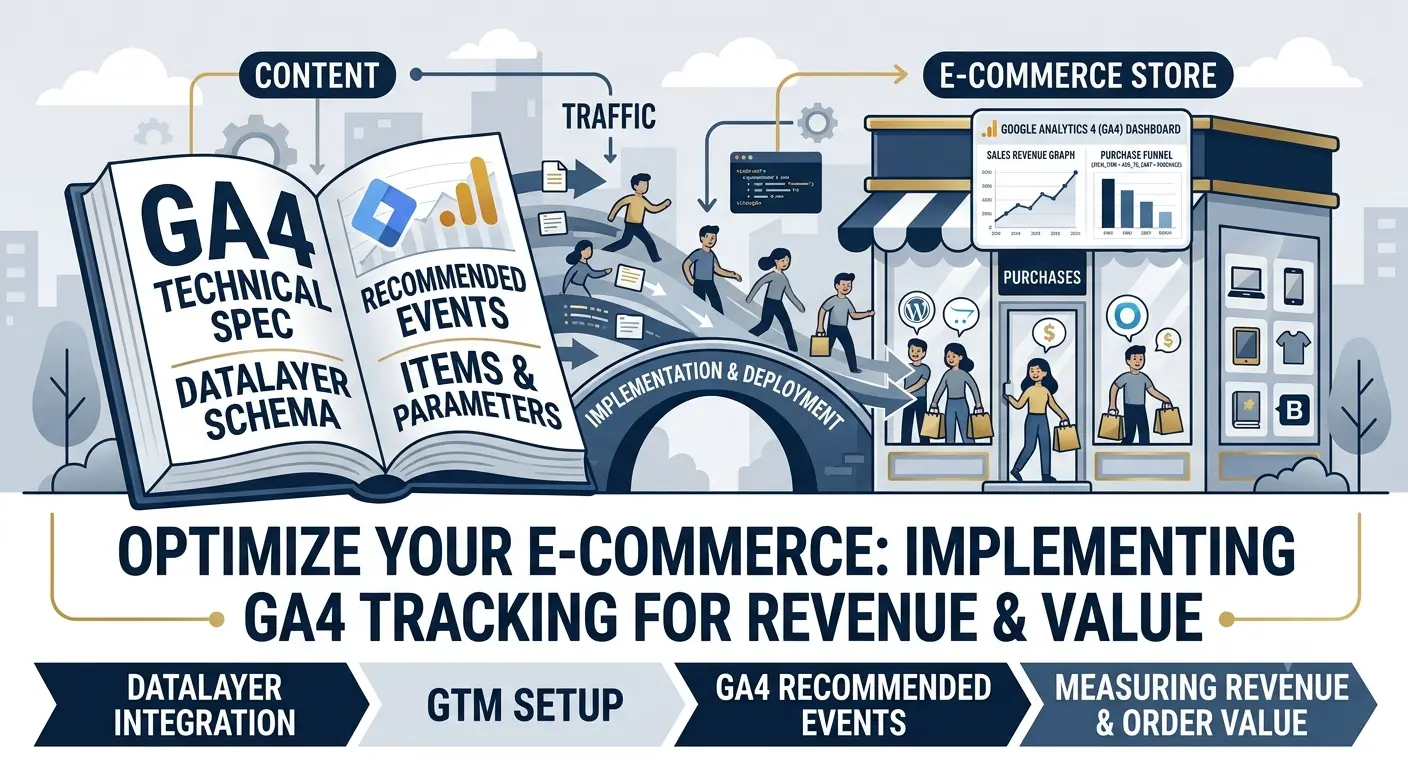
Google Analytics 4 (GA4) Setup for E-commerce: How to Properly Track Purchases and Order Value
Why basic analytics doesn't show the real picture. How to set up view_item, add_to_cart, begin_checkout and purchase events to see the ROI of each ad. A guide for online store owners.
Table of Contents
- Why Basic Analytics Isn't Enough
- Basic GA4 Setup for an Online Store
- Key E-commerce Events: From View to Purchase
- What is DataLayer and How It Works
- Google Tag Manager vs gtag.js: Which to Choose
- Purchase Tracking (purchase event)
- How to See ROI of Each Ad
- GA4 on BooStore: Setup in 5 Minutes
- Shortcodes and Callback Functions: Custom Analytics
- Common Mistakes When Setting Up GA4
Why Basic Analytics Isn't Enough
The standard GA4 code, which many simply insert into the site footer, shows basic metrics: number of visitors, page views, sessions. But for an online store, this is critically insufficient.
Without enhanced e-commerce, you won't know:
- How many people added a product to the cart but didn't buy
- Which products are most often viewed together
- At what stage of checkout people abandon their cart
- Which ads led to actual purchases, not just clicks
- Average order value for each advertising channel
A marketer I know told me: they set up GA4 with e-commerce for a client — a cosmetics store. After a week, they found that 40% of people abandon their cart at the shipping method selection stage. They simplified the form — conversion increased by 15%. Without data, they would never have noticed.
Basic GA4 Setup for an Online Store
Before moving to e-commerce events, you need to create a data stream in GA4 and install the base code.
Step 1. Create a Data Stream
- Go to Google Analytics → Admin → Create Property
- Select "Web", enter your store's URL
- Copy the Measurement ID (format G-XXXXXXXXXX)
Step 2. Install the Code on Your Site
There are several ways:
- Via Google Tag Manager (recommended) — create a GA4 tag with an All Pages trigger. GTM provides flexibility for configuring events without editing code.
- Via CMS/platform — many platforms allow you to insert GA4 ID in the settings. For example, on BooStore, simply enter the ID in the "Google Analytics ID" field, and the code is automatically connected on all pages.
Key E-commerce Events: From View to Purchase
For an online store, Google has defined a standard set of enhanced e-commerce events. Here's what you need to set up first:
| Event | When It Fires | What It Provides |
|---|---|---|
view_item | Visitor opens a product page | See which products are viewed but not purchased. You can analyze price, photos, description |
view_item_list | Visitor sees a product list (category, search) | Analysis of category popularity, site search effectiveness |
add_to_cart | Product added to cart | Conversion from view to cart — one of the key metrics |
remove_from_cart | Product removed from cart | Which products are added but then removed? Possibly high price or poor description |
begin_checkout | Checkout initiation | At this stage, people are already motivated. If they drop off here — the issue is with the form or delivery |
add_shipping_info | Shipping method selection | If users don't reach the selection — the checkout form is too complex |
add_payment_info | Payment method selection | May indicate that a payment method is inconvenient or not working |
purchase | Purchase completed | The most important event. Without it, GA4 doesn't see revenue. Sends order total, transaction ID, items |
Each event transmits parameters: item id, name, category, price, quantity, currency. This data populates the purchase funnel reports and the "Monetization" report.
What is DataLayer and How It Works
DataLayer is a JavaScript object on the page that temporarily stores data about products, cart, and order. GA4 via GTM or gtag.js reads this data and sends it as event parameters.
Without DataLayer, each event would have to be hardcoded. With DataLayer, data is collected automatically — you just need to write the correct structure.
Example of DataLayer when adding a product to cart:
How to Set Up DataLayer Depending on Your Platform
- WordPress + WooCommerce: use the Google Listings & Ads or GTM4WP (Google Tag Manager for WooCommerce) plugin. They automatically generate DataLayer on all pages.
- OpenCart: you need an enhanced e-commerce module. Without it, DataLayer must be written manually in theme files.
- BooStore: DataLayer is generated automatically at the core level. All e-commerce events are sent to GA4 without installing plugins. More details below.
Google Tag Manager vs gtag.js: Which to Choose
There are two approaches to sending data to GA4 — direct installation via gtag.js or via Google Tag Manager (GTM). Each has its pros and cons.
What is Google Tag Manager
GTM is Google's free tag management system. Instead of inserting multiple scripts (GA4, Facebook Pixel, Yandex.Metrica, Hotjar, etc.) directly into the site code, you install one GTM container and configure all tags via a web interface.
This allows you to change analytics settings without involving a developer and without editing the site code. Just publish a new container version — and changes take effect on all pages.
What is dataLayer.push() and How It Works
DataLayer is a global JavaScript array that stores data on the page. GTM reads this array and when new data appears, automatically fires the corresponding tags. The dataLayer.push() method adds a new object to this array, thereby notifying GTM about the event that occurred.
Basic call structure:
After calling dataLayer.push(), GTM checks if there is a trigger that responds to the custom_event event. If there is — it fires the associated tags. This is the foundation of all event-based analytics.
Example: Tracking a Button Click via dataLayer.push
Suppose you have a "Buy in One Click" button and want to track its clicks in GA4. Instead of attaching a handler directly to GA4, you add dataLayer.push to the button's JavaScript code:
In GTM, you create a trigger for the quick_buy event and a GA4 tag that sends this event with product_id, product_name and price parameters. All without editing the main GA4 code.
Approach Comparison: gtag.js vs GTM
| Parameter | gtag.js (Direct Setup) | Google Tag Manager |
|---|---|---|
| Setup Complexity | Low — paste code and done | Medium — need to create container, configure tags and triggers |
| Flexibility | Low — changes require code edits | High — everything via interface, no code |
| Speed of Changes | Need to push code changes | Publish new version — changes live immediately |
| Number of Tags | Each tag is a separate script in code | One container for all tags (GA4, Pixel, Hotjar, etc.) |
| Preview Mode | Only via browser console | Built-in Preview mode — see all fired tags and DataLayer |
| Version Control | None | Yes — can roll back to previous container version |
| Performance | Scripts load immediately | Async loading, tags don't block rendering |
| Entry Barrier | Minimal | Need to learn triggers, variables, tags |
When to Choose What
- gtag.js — if you have a simple store, only GA4, and don't plan to frequently change analytics settings. Suitable for a quick start.
- GTM — if you have multiple analytics systems (GA4 + Facebook Pixel + Yandex.Metrica + Hotjar), plan to track custom events, want the ability to make quick changes without a developer.
Purchase Tracking (purchase event)
The purchase event is the most important. It's what Google uses to calculate revenue, return on ad spend (ROAS), and optimize campaigns.
Here's what a correct DataLayer for a purchase should look like:
Parameters you need to pass:
transaction_id— unique order ID. Duplicate protection: if GA4 receives two events with the same transaction_id, it will only count the first one.value— final order total with discount and shipping. Not the sum of items, but what the customer actually paid.currency— currency (UAH, USD, EUR).items— array of purchased items with prices and quantities.
How to See ROI of Each Ad
Once all e-commerce events are configured, you can connect advertising channels. Without this, you only see clicks but don't know which ones led to purchases.
GA4 + Google Ads Integration
In GA4, go to Admin → Product Links → Google Ads Link. After that, GA4 conversions (purchase, add_to_cart, etc.) will appear in Google Ads reports.
GA4 + Facebook / Meta Ads Integration
Set up Conversions API (CAPI) on the server side. Without CAPI, the pixel loses up to 30% of data due to ad blockers and iOS restrictions. GA4 in this setup acts as a conversion confirmation server.
Attribution: Which Ads Actually Sell
GA4 has attribution reports. They show which channels lead to purchases and which only lead to first clicks. Based on this data, you reallocate your budget: remove ineffective channels, strengthen working ones.
Real-world example: we set up end-to-end analytics GA4 + Google Ads + Facebook for a client. It turned out that Facebook provides 80% of first touches but only 20% of closing touches. Google Ads — the opposite. We reallocated the budget: Facebook for awareness (top of funnel), Google Ads for conversions (bottom of funnel). ROI increased by 35%.
GA4 on BooStore: Setup in 5 Minutes
This is where WordPress and OpenCart owners usually start struggling: installing plugins, configuring DataLayer, checking script conflicts, updating when changing themes. On BooStore, it's different. The platform also provides powerful automation tools and allows you to create booking service websites — all analytics is already built in for them too.
GA4 enhanced e-commerce is integrated at the platform core level. This means:
Measurement ID in Admin Panel
Simply paste the GA4 tracking ID (G-XXXXXXXXXX) into the corresponding field in the site settings. The code is connected on all pages automatically.
Automatic E-commerce Events
view_item, add_to_cart, remove_from_cart, begin_checkout, purchase — all events are sent to GA4 without additional setup.
Correct DataLayer
DataLayer is generated by the core with correct parameters: discounted price, currency, product category, unique order ID. No plugins needed.
Google Tag Manager
Both direct GA4 integration and via GTM are supported. Simply insert your GTM container ID — and manage tags through the Google interface.
Form and Subscription Events
Data submission from contact forms, newsletter subscriptions, registrations — all these events are also sent to GA4 if configured.
Separate GA4 and GTM Settings
You can connect both GA4 directly and GTM simultaneously — they don't conflict. Each with its own ID.
Compare: on WordPress you need to install a plugin (e.g., GTM4WP), configure its data map, check compatibility with your theme and other plugins, test. When updating the theme or plugin — check again. On BooStore, everything works "out of the box" and doesn't break with updates.
To get started, the free plan is enough — GA4, DataLayer and e-commerce events work on all plans, including the free plan. The limitation is only on the number of products, not on analytics.
Shortcodes and Callback Functions: Custom Analytics on BooStore NEW
The standard set of GA4 events is often enough for basic analytics, but complex scenarios may require passing custom data. On BooStore, there are two powerful tools for this — Shortcodes and Callback Functions.
Shortcodes: Dynamic Data Anywhere
Shortcodes are replaceable aliases that substitute real data from the system: product ID, name, price, category, SKU, image path, and much more. They work at the HTML and JavaScript level, allowing you to embed live data directly into analytics code.
The full list of Shortcodes is described in the platform documentation.
Example: Passing Product ID in a Custom GA4 Event
Suppose you want to send a GA4 event when clicking a "Quick View" button with product data. Use Shortcodes to dynamically substitute the product ID, name, and price:
Shortcodes [product_id], [product_name], [product_price] and [product_sku] will be automatically replaced with the actual product card data when it is opened. In GTM, you create a trigger for the quick_view event and read these parameters.
Example: Event on Form Submission with Order Data
Shortcodes work not only with products but also with other site data. For example, you can pass the order total on the "Thank You" page:
Callback Functions: Intercepting Platform Events
BooStore supports JavaScript Callback functions that are automatically called after certain data is loaded or changed on the page. This allows you to implement your own analytics logic without modifying the site core. All events are described in the Callback Functions documentation.
Available Callback Events for Analytics
callback_add_cart(product_id)
Called when a product is added to cart. Passes the product ID. You can immediately send the add_to_cart event to GA4.
callback_remove_cart(product_id)
Called when a product is removed from cart. Useful for tracking remove_from_cart.
callback_variation_change(product_id, variation_id)
Called when a product variation changes (e.g., size or color selection). You can analyze which variations are more popular.
callback_favorite_add(product_id)
Called when a product is added to favorites. Useful for remarketing.
callback_list_products(products)
Called after displaying a product list. Passes an array of products on the page. Use for view_item_list.
callback_order_confirm(order_id, total)
Called when an order is confirmed. Passes the order ID and total — ideal for the purchase event.
Real Example: Custom Purchase Event via Callback
Suppose you want to send a purchase event to GA4 with additional data that the standard BooStore DataLayer doesn't pass. You can override callback_order_confirm:
Example: Tracking Product Variation Changes
If you sell products with variations (color, size), it's useful to know which variant is chosen more often. Use callback_variation_change:
Example: Custom Data Passing When Adding to Cart
Sometimes you need to send not only standard fields to GA4 but also additional information — for example, where the user came from or their discount group:
Quick Integration via GTM + Shortcodes
You can combine GTM with Shortcodes for flexible configuration. Instead of writing JavaScript code on the site, use a Custom HTML tag in GTM, paste the code with Shortcodes there, and GTM will process it like any other tag:
This tag will fire on product pages and pass real Shortcodes data to the DataLayer. Other GTM tags will have access to it.
Common Mistakes When Setting Up GA4
I've seen dozens of stores where GA4 is set up but data doesn't arrive or is incorrect. Here are the most common mistakes:
- Missing transaction_id in purchase — GA4 won't count the purchase without it. The system considers it a duplicate. Check that the order ID is being passed in the DataLayer.
- Duplicate purchase event — if the purchase event is sent twice for one purchase (e.g., on the "Thank You" page and somewhere else), GA4 will double the revenue. transaction_id only protects against duplicates within a single property.
- Incorrect currency — if the store uses hryvnia but the event sends USD, revenue data will be incorrect. Check the currency parameter in each event.
- Outdated Universal Analytics code — if the site has old UA code (UA-XXXXXX) but no GA4 (G-XXXXXXX), data won't arrive. You need the new GA4 code. Universal Analytics was shut down in July 2023.
- Ad blockers — many users have AdBlock which blocks GA4. Server-side GTM (Server-side Tagging) solves this but requires configuration.
- Ignoring test purchases — set it up and forgot to test. Always place a test order and check via the real-time report whether the purchase event came through.
Analytics Is Not Magic, It's Data
Properly configured analytics shows which products sell, where customers come from, and how much you earn from every dollar of your ad budget. Without it, you're running your store blind.
Start small: install GA4, set up the purchase event, test a purchase. In a week, you'll have data to make decisions. In a month — an understanding of how to allocate your ad budget.
GA4, Facebook Pixel, e-commerce events — everything built-in.
❓ Frequently Asked Questions About GA4 Setup for Online Stores
Answers to questions that most often arise when configuring e-commerce analytics.
Do I need to manually configure DataLayer on BooStore?
No. On the BooStore platform, DataLayer is generated automatically at the core level. All e-commerce events (view_item, add_to_cart, purchase, etc.) are sent to GA4 without installing plugins or additional configuration. Simply insert your GA4 tracking ID in the site settings.
How is GA4 different from Universal Analytics for an online store?
GA4 uses an event-based model rather than the session-based model of UA. This provides more flexible analytics: you see not just "visits" but specific user actions. Additionally, GA4 supports cross-platform tracking (website + mobile app), Data-Driven attribution, and machine learning for behavior prediction. Universal Analytics was officially discontinued in July 2023 — everyone should have migrated to GA4.
Why aren't purchases showing up in GA4?
The most common reason is the missing required transaction_id parameter in the purchase event. Without it, GA4 ignores the event. Other causes: duplicate order ID, incorrect currency, ad blockers, incorrect GA4 code installation. We recommend verifying via GTM Preview mode or GA4 DebugView.
Can I connect GA4 to my online store without GTM?
Yes, you can install the GA4 code directly (gtag.js). This method is simpler but less flexible. Google Tag Manager is recommended if you plan to configure many events, pixels, and integrations. On BooStore, both methods are supported — specify the GA4 ID in the admin panel or a GTM container ID.
How does GA4 calculate revenue from purchases?
GA4 sums the value of the value parameter across all purchase events. The value should be the final order total including discounts, shipping, and taxes. If value is not passed, GA4 attempts to calculate revenue as the sum of price × quantity for each item, but this is a less reliable method.
Do I need to tag links with UTM parameters?
Yes, absolutely. GA4 automatically detects traffic source for Google Ads and organic search. For all other channels (email newsletters, social media, affiliate links), you need to add UTM parameters. Proper tagging is the foundation of correct attribution. Without UTM tags, traffic from Instagram might end up in "Direct" or "Referral", and you won't see its true value.
Which GA4 reports are most important for an online store?
Top 5 reports for e-commerce: 1) Monetization → Overview — revenue, purchases, average order value. 2) Monetization → E-commerce Purchases — purchases by product and category. 3) Engagement → Events — views of all events (add_to_cart, begin_checkout, purchase). 4) Advertising → Attribution — which channel actually sells. 5) Audience → Overview — customer behavior, new vs. returning. Add these reports to favorites for quick access.
What is dataLayer.push() and why is it needed?
dataLayer.push() is a JavaScript method that adds data to the global DataLayer array on the page. When you call dataLayer.push({event: "custom_event", ...}), Google Tag Manager instantly receives a notification and fires tags associated with that event. This is the primary way to send custom events to GA4, Facebook Pixel, and other analytics systems without inserting additional scripts into the site code.
GTM or gtag.js — which is better for an online store?
If you have a simple store with one or two analytics scripts — gtag.js is sufficient. It's faster to set up. If you use GA4 + Facebook Pixel + Hotjar + custom events — choose GTM. It offers flexibility: you can change settings without a developer, has preview mode, version control, and centralized tag management. On BooStore, both approaches are supported.
How to pass custom data to GA4 via Shortcodes on BooStore?
Shortcodes are aliases like [product_id], [product_name], [product_price] that are automatically replaced with actual product card data. You can use them in JavaScript code on the page. For example: dataLayer.push({event: "view", id: "[product_id]"}). When the product is opened, [product_id] will be replaced with its ID. The full list of available Shortcodes is in the documentation.
How to use BooStore Callback functions for analytics?
Callback functions are JavaScript functions that are automatically called by the platform when certain events occur: adding to cart (callback_add_cart), removing from cart (callback_remove_cart), variation change (callback_variation_change), order confirmation (callback_order_confirm), and others. You define these functions in your code, and they receive event data. Inside the function, you can send this data to GA4 via dataLayer.push() or to any other system. Full description is in the Callback Functions documentation.